Copyright © 2025-2026 Candy Arts
Connecting Blocks
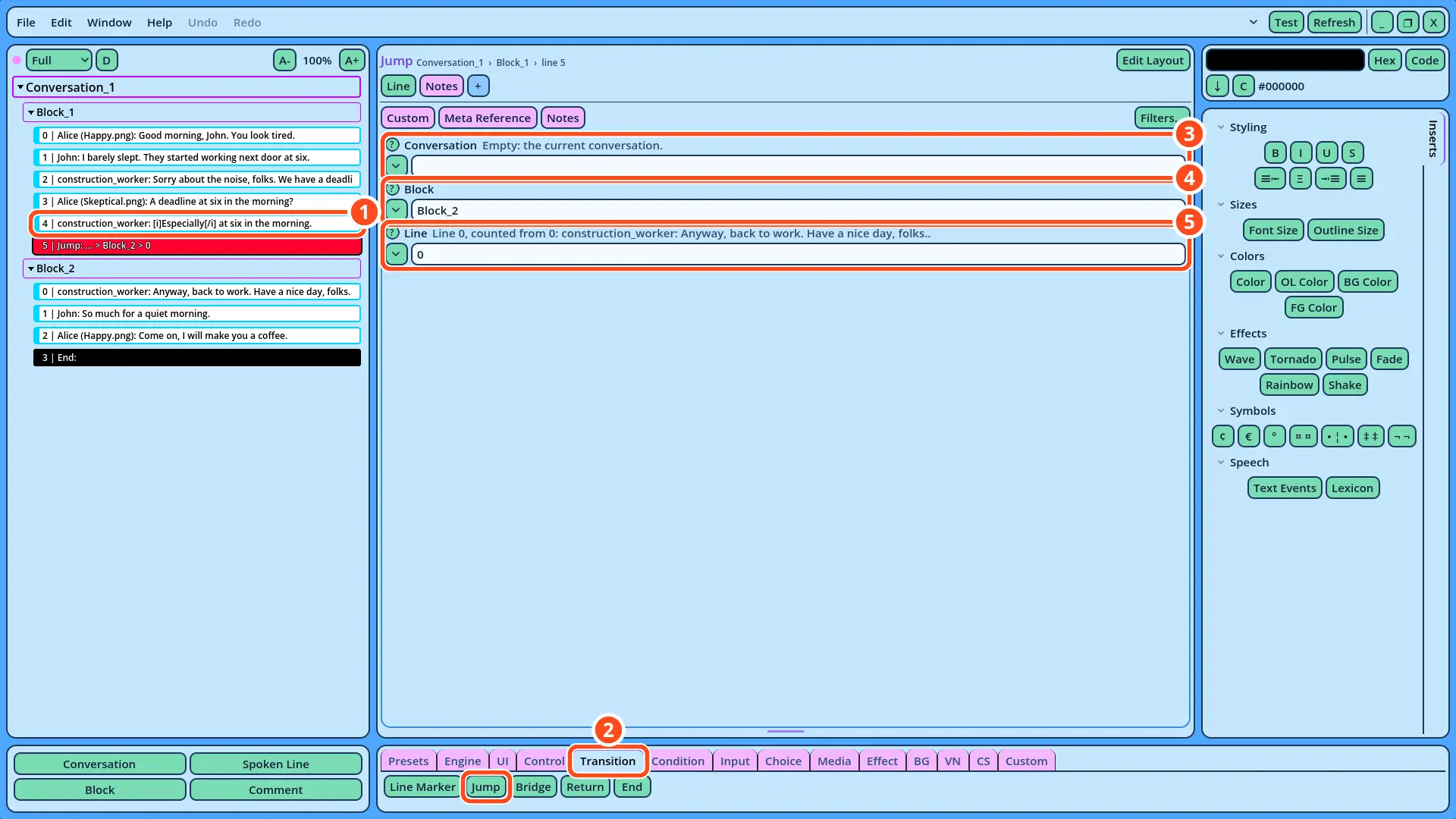
In this tutorial, you will learn to continue a Dialogue from one Block to another, with the Jump command. The morning scene of the Dialogue tutorial continues in a second Block, Block_2, in which the construction worker leaves and Alice and John go on talking.
The Lines of a Block run in order, and the Dialogue ends after the last one: a Dialogue never continues to the next Block on its own. A Jump command, as the last Line of a Block, continues the Dialogue in the Block it designates.
Before You Start
This tutorial continues the Dialogue written in the Dialogue tutorial. It must be open in Candy Dialogue Creator: if you saved it (File > Save) and closed Candy Dialogue Creator since, open it again with File > Load Dialogue...
1. Removing the End Command
Block_1 currently ends with an End command. The Dialogue no longer ends there: it continues in Block_2, which receives the End command instead.
1. In the Dialogue Navigator, right-click the End command at the end of Block_1, and select Delete.
2. Adding a Block
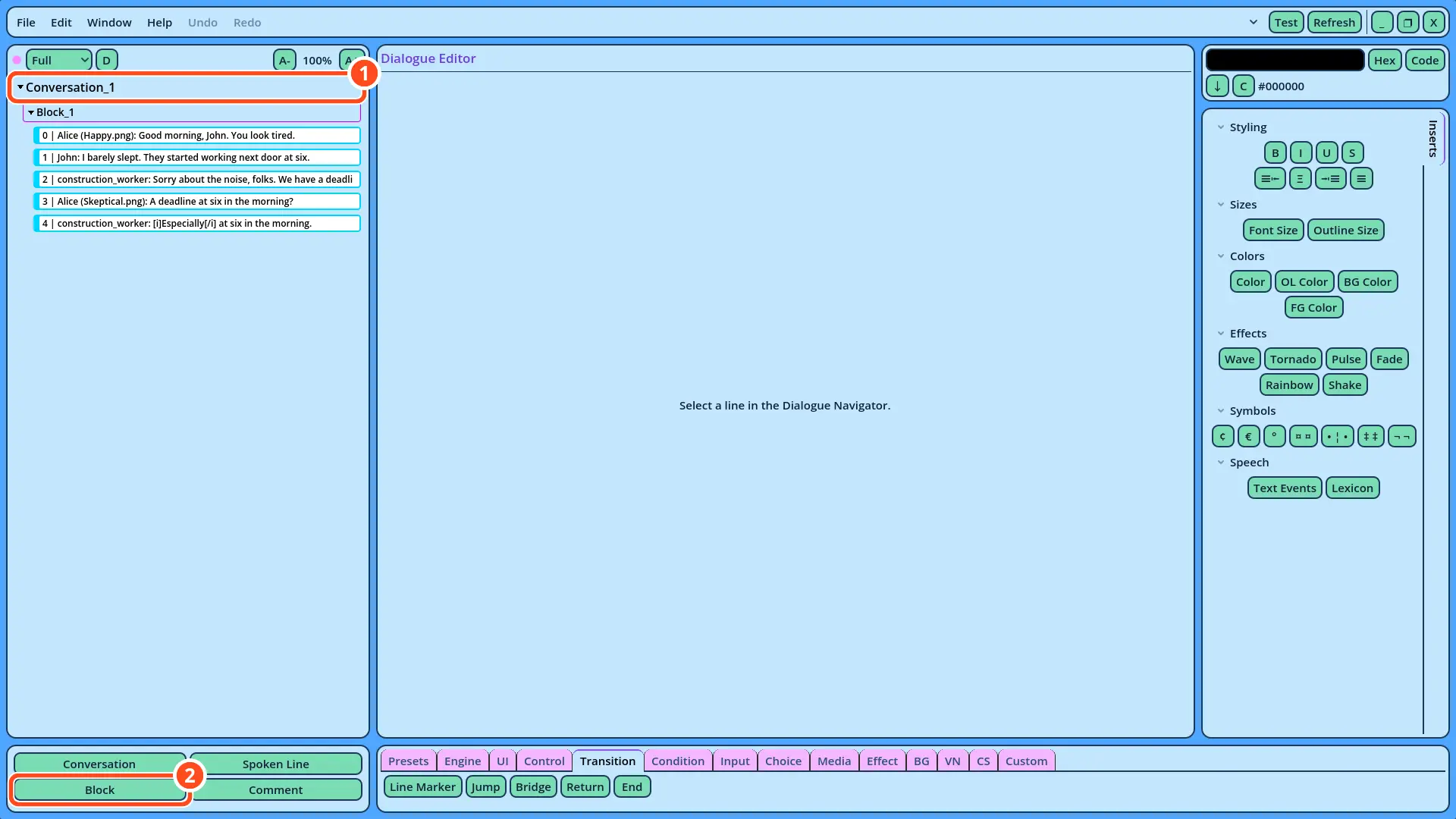
1. Select Conversation_1 in the Dialogue Navigator.
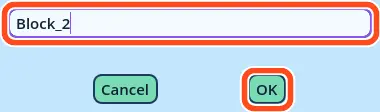
2. In the Buttons panel, click Block. A window asks for the new Block's name.
| Speaker | Portrait | Text |
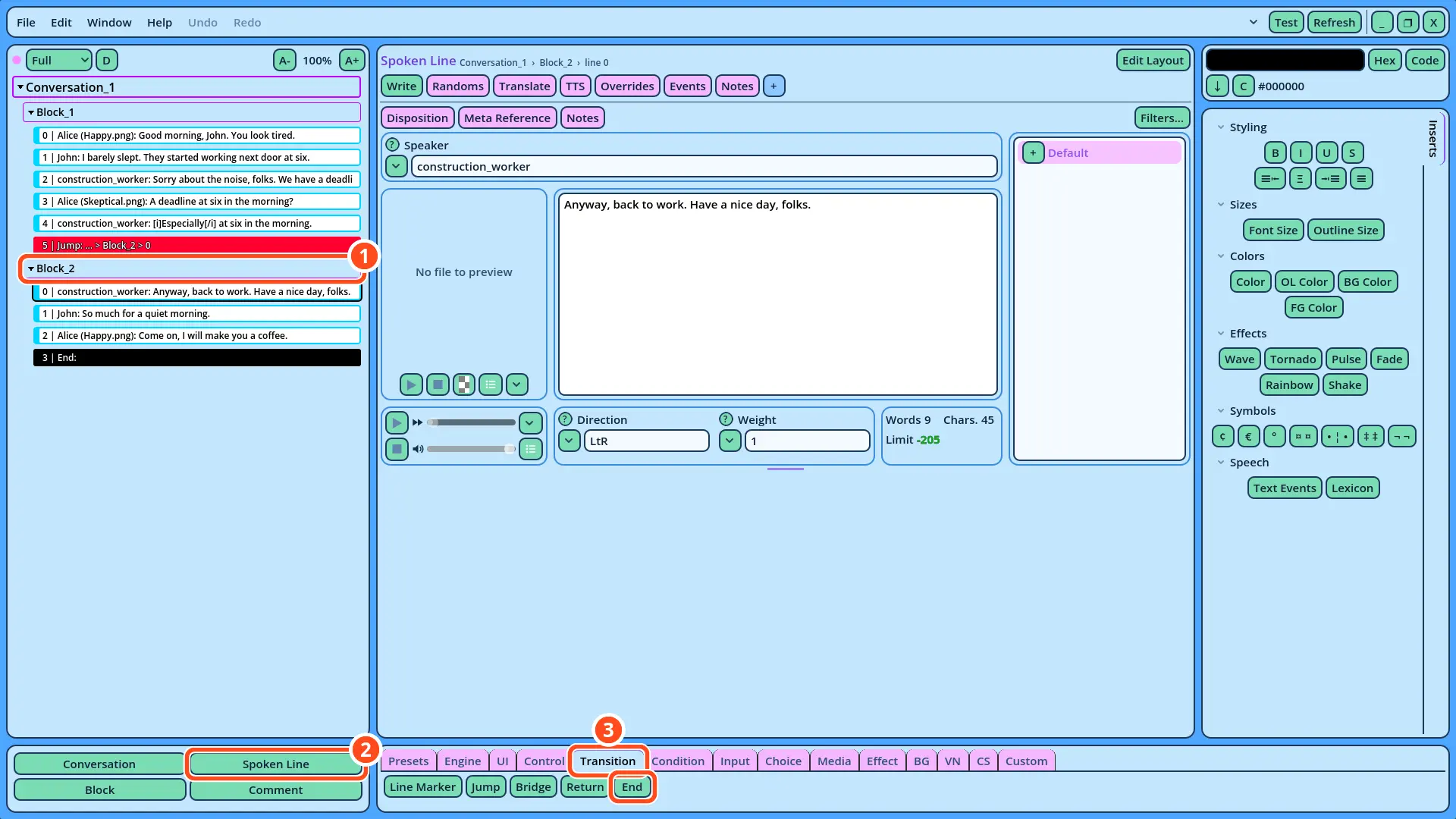
| construction_worker | (empty) | Anyway, back to work. Have a nice day, folks. |
| John | (empty) | So much for a quiet morning. |
| Alice | Happy.png | Come on, I will make you a coffee. |