Roles
In this tutorial, you will learn to write Lines spoken by a Role instead of a specific Actor, and to change the Actor that plays the Role with the Role command. Visitors knock at John's door one after the other: the same "guest" Role speaks for each of them.
A Role stands in for an Actor who isn't known when the Dialogue is written: the player's companion, the shopkeeper of the current town, whoever answers the door... The game decides which Actor plays the Role, and the Lines of the Role are spoken by that Actor, with their name and portraits.
Before You Start
This tutorial uses the Actors and portraits of the Beginner tutorials: Alice, John and the construction worker. Write its scene in the Dialogue of your choice: the Dialogue of the Beginner tutorials, or a new one (File > New Dialogue).
1. Adding the Role
Roles are stored in the roles dictionary of Roles.gd: each key is a Role's name, and its value is the Actor Reference of the Actor who plays the Role when the game starts.
1. In the Godot Editor, open the Candy Dialogue tab of the bottom panel. Choose Data in the drop-down, then click Roles: Roles.gd opens in the script editor.
2. Add a "guest" Role to the roles dictionary, played by Alice, and save the script:
var roles = {
...
"guest": "Alice",
}
The dictionary already contains two example Roles, which this tutorial doesn't use.
2. Updating Candy Dialogue Creator
Candy Dialogue Creator reads the Roles of your project, to include them in drop-down lists.
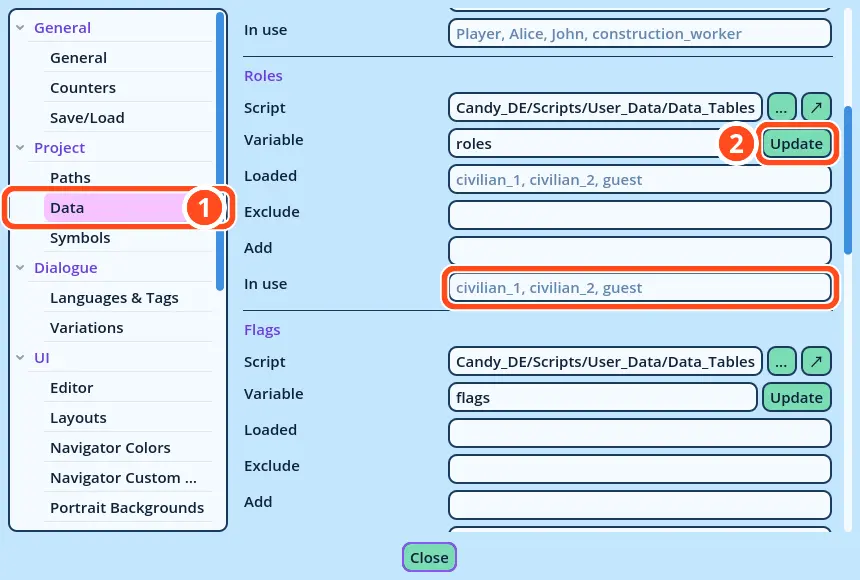
1. Open Edit > Settings..., then the Data page of the Project category.
2. In the Roles section, click Update: guest appears in the "In use" field. Close the settings.
3. Writing the Scene
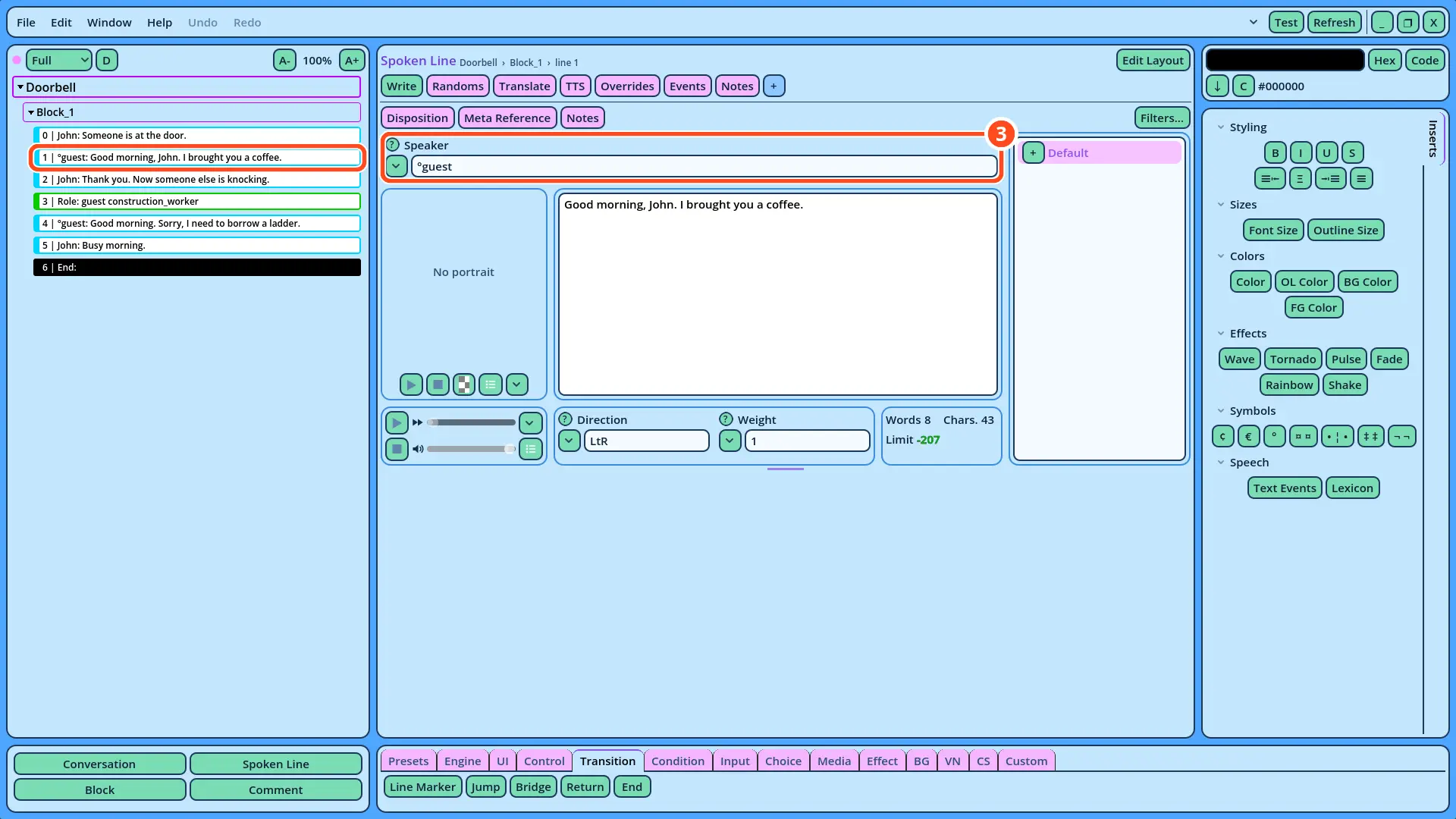
In a Dialogue, a Role is written with the ° symbol before its name: °guest. This is a Role Reference: it's accepted wherever an Actor Reference is, such as the Speaker field of a Line.
1. Add a Conversation named "Doorbell", as in the Conversations tutorial.
2. In its Block_1, add five Spoken Lines, then an End command after the last one:
| Speaker | Portrait | Text |
| John | (empty) | Someone is at the door. |
| °guest | (empty) | Good morning, John. I brought you a coffee. |
| John | (empty) | Thank you. Now someone else is knocking. |
| °guest | (empty) | Good morning. Sorry, I need to borrow a ladder. |
| John | (empty) | Busy morning. |

3. To write °guest in a Speaker field, click the field's v button and select °guest in the Roles submenu. You can also write it: the ° button of the Inserts panel, in its Symbols section, inserts the symbol.
The portrait preview of a °guest Line remains empty: the Actor who plays the Role is only known when the Line runs. Leave the Portrait empty: the Line displays the Default.png portrait of the Actor who plays the Role.
4. Changing the Actor of the Role
The second visitor is the construction worker: a Role command makes her play the guest Role.
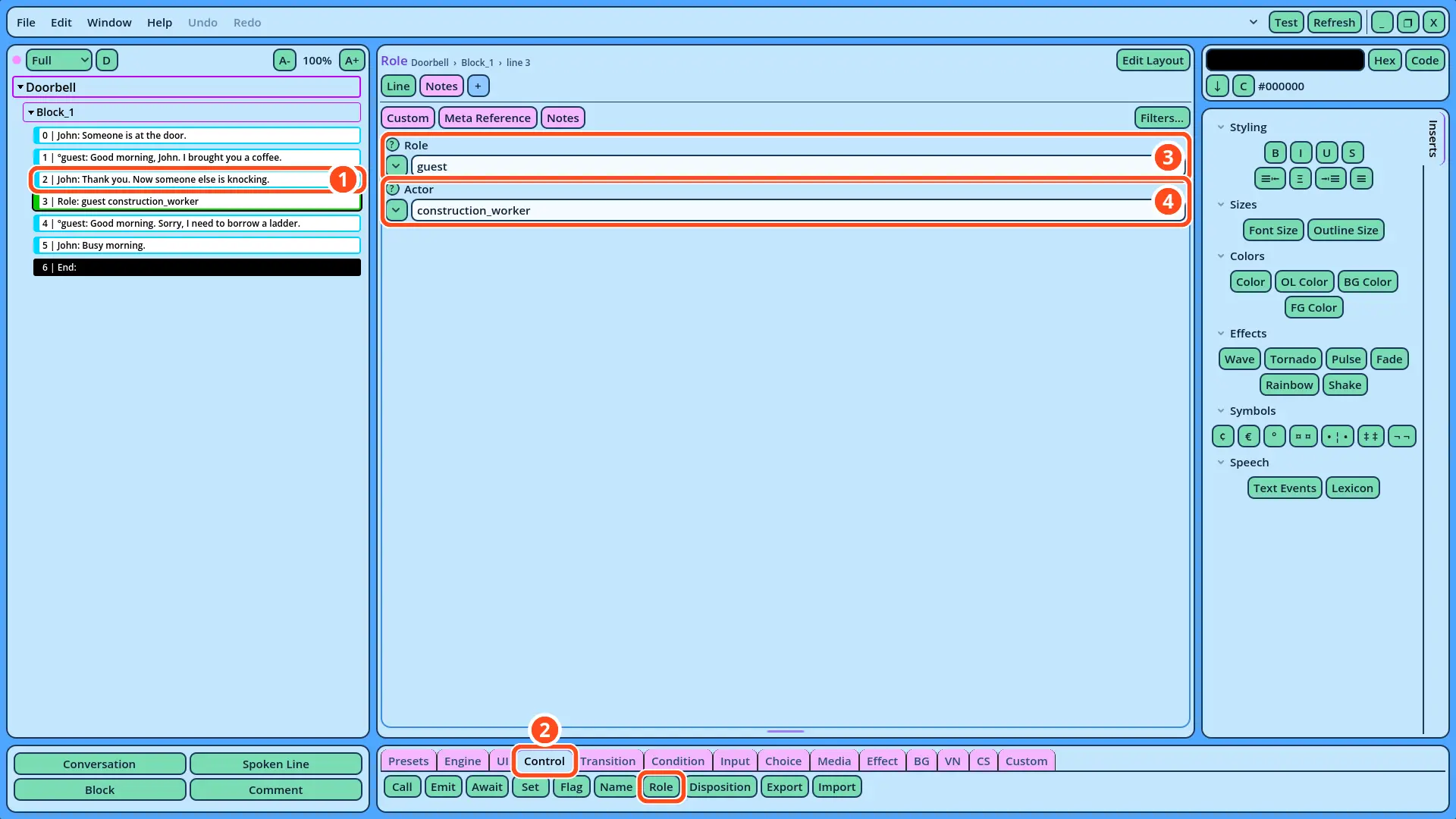
1. Select John's Line "Thank you. Now someone else is knocking."
2. Open the Control tab of the Buttons panel, and click Role. The Role command is added after John's Line.
3. In the Role field, click the v button and select guest, or write "guest", without the ° symbol.
4. In the Actor field, write "construction_worker", or click the field's v button and select it in the list.
How Roles Work
When a Line spoken by °guest runs, the Engine reads which Actor plays the guest Role, and the Line is displayed as if that Actor spoke it, with their name and portrait. Before the Role command, Alice plays the Role, as Roles.gd says. After it, the construction worker plays it.
The Role command changes the Role while the game runs: Roles.gd itself isn't modified, and Alice plays the Role again when the game starts. Your game code can also assign a Role, when a character joins the player's party, for example.
5. Testing the Scene
1. Right-click Doorbell in the Dialogue Navigator, and select Test Here.
2. Advance through the scene. The first visitor's Line displays Alice's name and portrait, and the second visitor's Line the construction worker's.
3. In Roles.gd, change the value of "guest" to "John", save the script, and test again: the first visitor's Line is now spoken by John. The Role command still assigns the construction worker to the Role before the second visit.
4. Change the value of "guest" back to "Alice", and save the script.
If the Test Fails
• The first visitor isn't Alice: check that "guest" is in the roles dictionary of Roles.gd, that its value is an Actor Reference written exactly as in Actors.gd, and that the script is saved.
• Both visitors are Alice: check that the Role field of the Role command is "guest", and that the command comes before the second °guest Line.
• The Speaker list has no Roles submenu: update the Roles in Candy Dialogue Creator's settings (step 2).
The same Lines now work with any Actor: a Role lets one Dialogue serve every character who may stand in that place, whoever the player meets.