
 Copyright © 2025-2026 Candy Arts
Changing Names
In this tutorial, you will learn to change the name an Actor displays during a Dialogue, with the Name command. The construction worker introduces herself as Jane, and from then on, the dialogue box displays "Jane" above her Lines instead of "Construction Worker".
Before You Start
This tutorial uses the Actors and portraits of the Beginner tutorials: Alice, John and the construction worker. Write its scene in the Dialogue of your choice: the Dialogue of the Beginner tutorials, or a new one (File > New Dialogue).
1. Writing the Introduction
1. Add a Conversation named "Introductions", as in the Conversations tutorial.
2. In its Block_1, add five Spoken Lines, then an End command after the last one:
| Speaker | Portrait | Text |
| construction_worker | (empty) | Good morning, folks. Sorry about the noise. |
| John | (empty) | We were never introduced, by the way. |
| construction_worker | (empty) | Right. I am Jane. |
| John | (empty) | Nice to meet you, Jane. Could you start a little later tomorrow? |
| construction_worker | (empty) | No promises. |
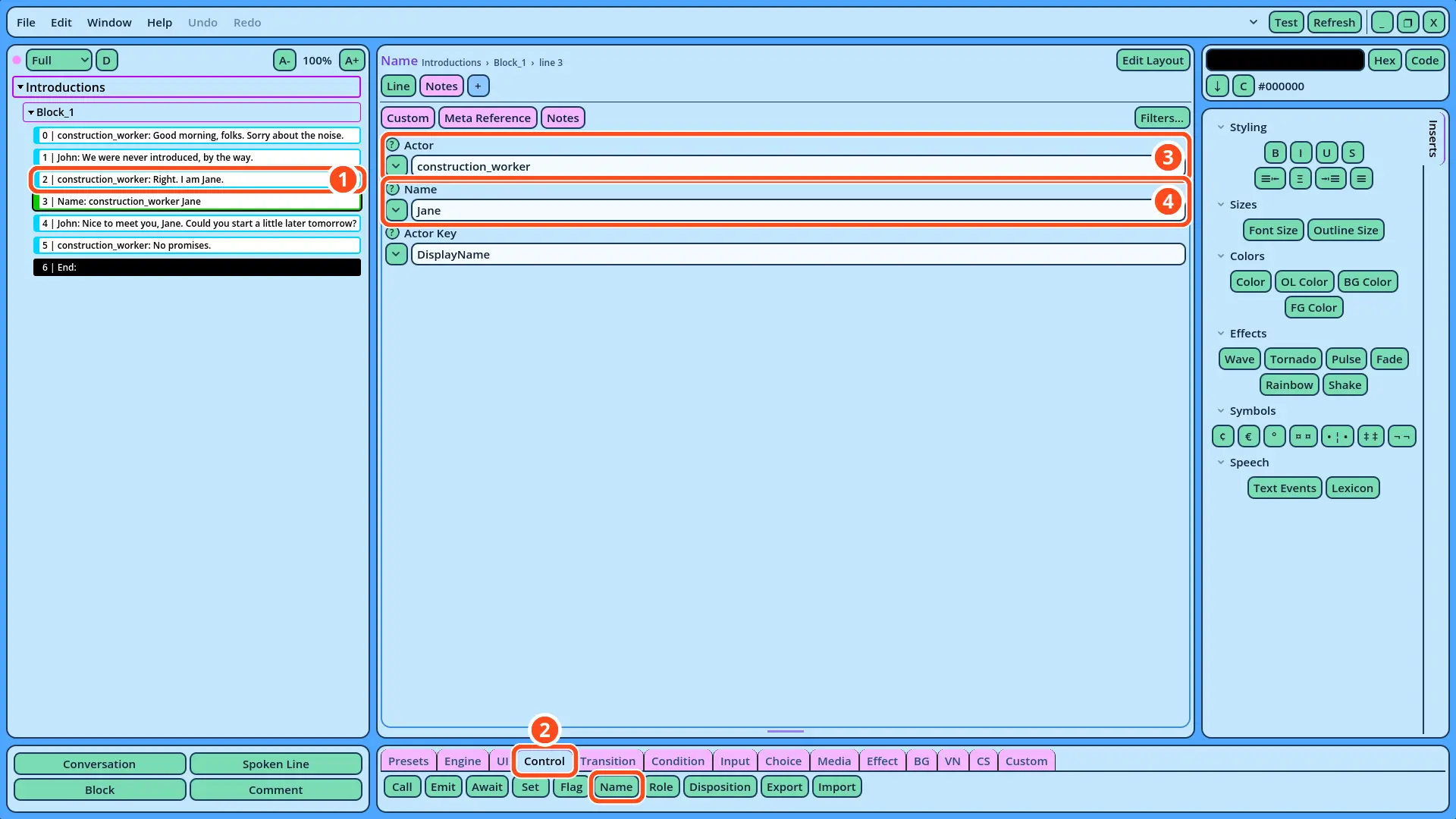
[color=orange]Jane[/color]
The name is changed while the game runs: Actors.gd itself isn't modified. When the game starts again, the construction worker's name is "Construction Worker" again. Saving the new name with the player's progress is up to your game.
3. Testing the New Name
1. Right-click Introductions in the Dialogue Navigator, and select Test Here.
2. Advance through the scene. The construction worker's first two Lines display "Construction Worker" above them.
3. After John's answer, her last Line, "No promises.", displays "Jane" above it.
If the Test Fails
• The last Line still displays "Construction Worker": check that the Actor field of the Name command is "construction_worker", written exactly as the Actor Reference in Actors.gd, and that the Name command comes before the construction worker's last Line.
The construction worker now has a name: an Actor's name can change at any point of a Dialogue, when a character introduces themselves, takes a title or reveals who they are.