Dialogue
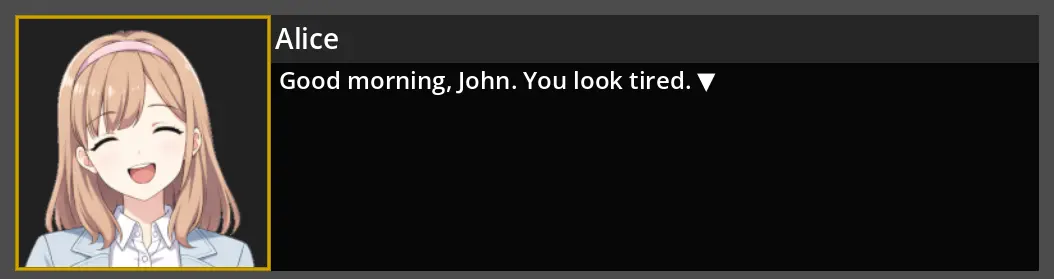
In this tutorial, you will learn to write a short Dialogue in which three characters talk, and run it in your project. Alice, John and a construction worker each speak in the dialogue box, with their name and portrait.
The Dialogue is written in Candy Dialogue Creator, and Candy Dialogue Engine runs it in a testing scene of your project. Every change made in Candy Dialogue Creator can be tested this way in one click, while the Dialogue is being written.
Before You Start
This tutorial assumes that:
• Candy Dialogue Engine is installed in your project, with the Candy Wizard enabled (see Installation).
• A key is assigned to the Dialogue_Advance input action (see Input Keys).
• Candy Dialogue Creator is downloaded, and a project profile points at your Godot project (see Candy Dialogue Creator).
• You're working in a new project, with a new Candy Dialogue Creator profile. If not, settings and configurations you have made or changed may cause things to look or behave differently than the tutorial describes.
The media files of the tutorials, such as the portraits of the three characters, are provided on GitHub: download Media.zip, and extract it. It contains a folder named Media.
1. Adding the Actors
Every character who speaks in a Dialogue is an Actor, with an entry in the actors dictionary of Actors.gd.
1. In the Godot Editor, open the Candy Dialogue tab of the bottom panel. Choose Data in the drop-down at the top of the panel, then click Actors: Actors.gd opens in the script editor.
2. Add an entry for each character inside the actors dictionary, after the "Player" entry:
var actors = {
	"Player": {
		...
	},
	"Alice": {
		"DisplayName": "Alice",
	},
	"John": {
		"DisplayName": "John",
	},
	"construction_worker": {
		"DisplayName": "Construction Worker",
	},
}
3. Save the script.
The key of each entry ("Alice", "John", "construction_worker") is the Actor Reference: the name your Dialogues use to designate the Actor. Actor References are case-sensitive: "Alice" and "alice" are different Actors. Don't use spaces in an Actor Reference.
DisplayName is the name displayed on screen when the Actor speaks. This is why the construction worker's reference is written with an underscore instead of a space, while the dialogue box displays "Construction Worker". When DisplayName is empty, the Actor Reference is displayed instead.
An Actor's other properties are optional, and none of them is needed for this tutorial.
2. Adding the Media Files
The downloaded Media folder has the same structure as the Candy_DE/Media folder of your project: copying it there puts each file where Candy Dialogue Engine looks for it. It contains the portraits of this tutorial, and the media files of later tutorials.
1. Copy the Media folder, extracted from Media.zip, into the Candy_DE folder of your project. If Candy_DE already contains a Media folder, merge the two.
2. Return to the Godot Editor, so that it imports the new files.
Each Actor's portraits are stored in a folder named after their Actor Reference, in Candy_DE/Media/Actors/Portraits: Alice's portraits in Alice, John's in John, and the construction worker's in construction_worker.
John and the construction worker each have a single portrait, Default.png. Alice has several, one per expression: Happy.png, Skeptical.png, Sad.png... A Line that doesn't name a portrait displays the speaker's Default.png.
3. Updating Candy Dialogue Creator
Candy Dialogue Creator reads your Actors and portraits from your project, to include them in drop-down lists. It doesn't read them again on its own after they change.
1. Open Candy Dialogue Creator and your project profile.
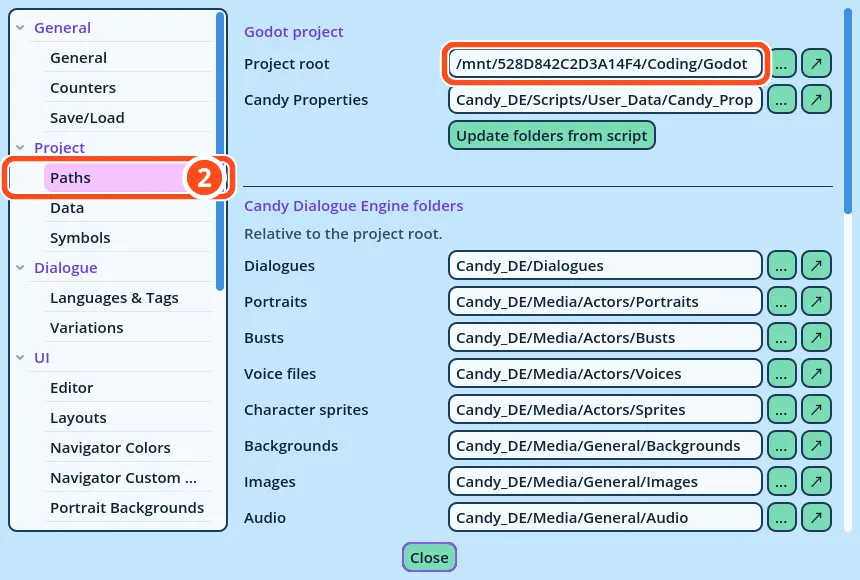
2. Open Edit > Settings..., then the Paths page of the Project category. If the Project root field is empty, enter the path to your Godot project: the folder that contains its project.godot file.
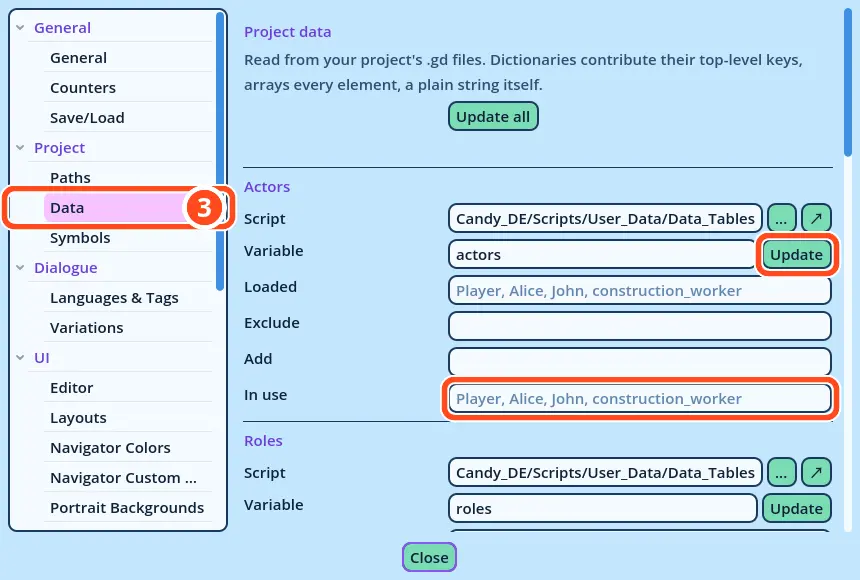
3. Open the Data page of the Project category. In the Actors section, click Update: Alice, John and construction_worker now appear in the "In use" list. Close the settings.
4. If Candy Dialogue Creator was already open when you added the media files, click Refresh, in the top bar, so that it scans the media folders again.
Repeat these steps whenever you add Actors or portraits.
4. Writing the Lines
A new Dialogue contains one Conversation, Conversation_1, which contains one Block, Block_1. Both are listed in the Dialogue Navigator, on the left. The Lines of a Block run in order, from top to bottom.
A Line in which an Actor speaks is a Spoken Line.
The First Line
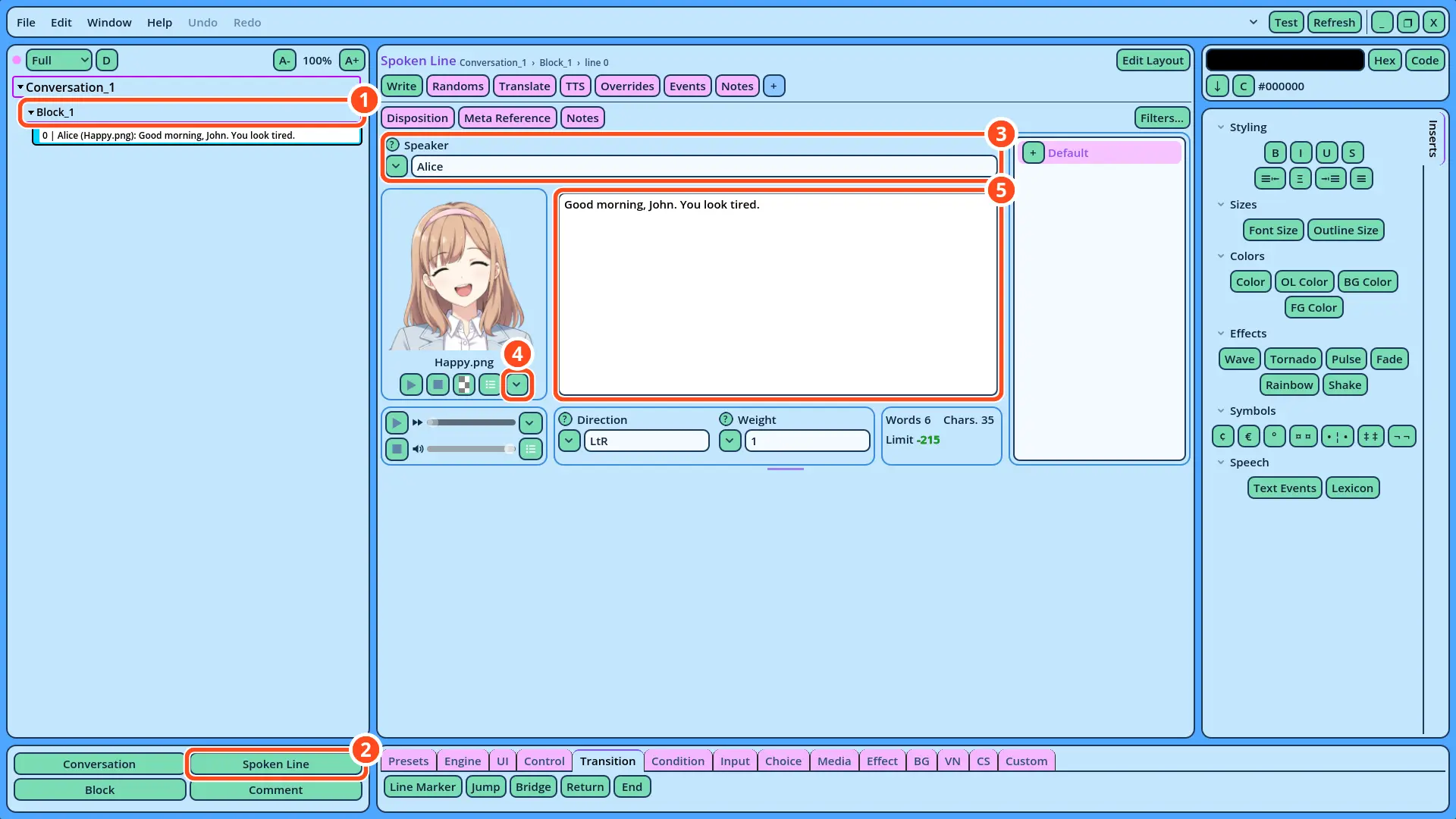
1. Select Block_1 in the Dialogue Navigator.
2. In the Buttons panel, at the bottom, click Spoken Line. The new Line is added to Block_1, and its fields are displayed in the Dialogue Editor, in the center.
3. In the Speaker field, write "Alice", or click the v button on the left of the field and select Alice in the list.
4. Click the v button of the portrait preview, and select Happy.png in the Image submenu. The list previews each file under the mouse pointer, and the selected portrait is displayed in the preview.
5. Click the text field, under the portrait, and write: "Good morning, John. You look tired."
The Other Lines
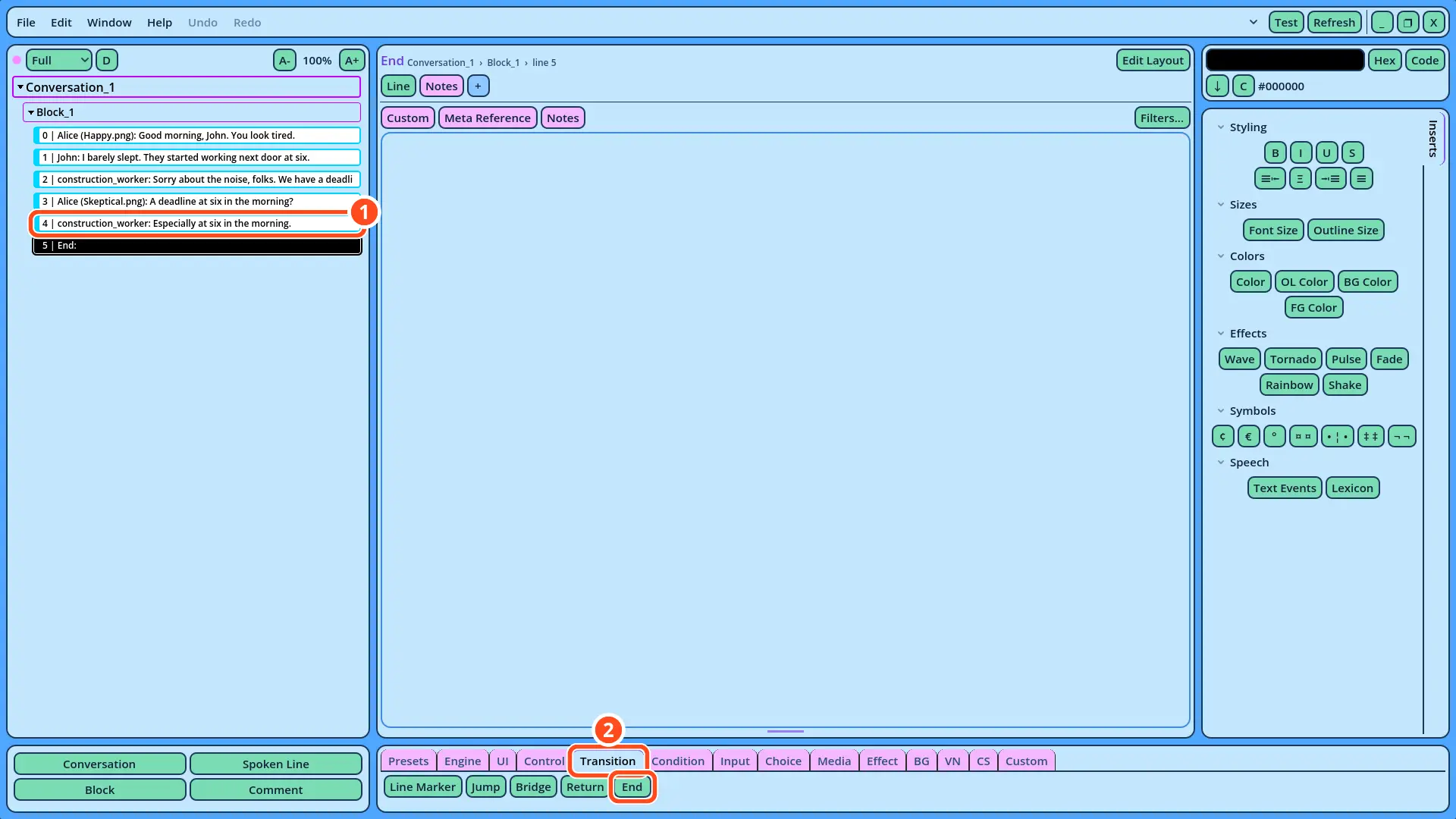
Each new Line is added after the selected one. Add four more Spoken Lines the same way:
| Speaker | Portrait | Text |
| John | (empty) | I barely slept. They started working next door at six. |
| construction_worker | (empty) | Sorry about the noise, folks. We have a deadline to meet. |
| Alice | Skeptical.png | A deadline at six in the morning? |
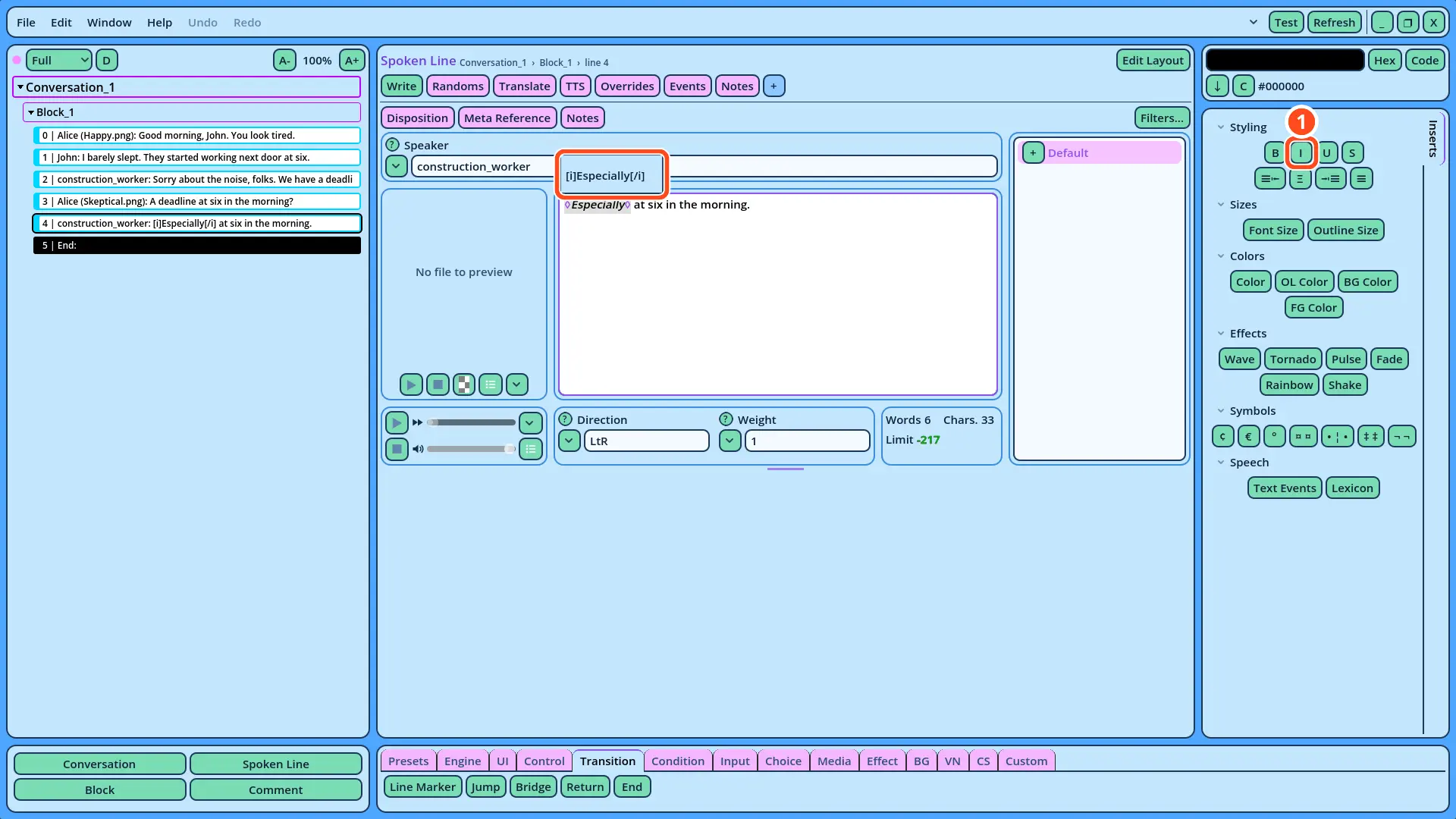
| construction_worker | (empty) | Especially at six in the morning. |
◊). When the caret is anywhere between the tags, a pop-up line above the formatted text displays the tags as written, and the tags can be edited in it. The diamonds are configured in the text field's settings: right-click the text field, select Options, then choose a Tag markers mode:
• Default: the mode set in Edit > Settings..., on the Editor page of the UI category. It is On in a new profile.
• On: every tag is replaced with a diamond.
• Smart: a diamond replaces only the tags whose position the formatting doesn't show: tags with no text between them, and tags at the start or end of a line.
• Off: no diamonds are displayed. The tags remain hidden, and the pop-up line still displays them.
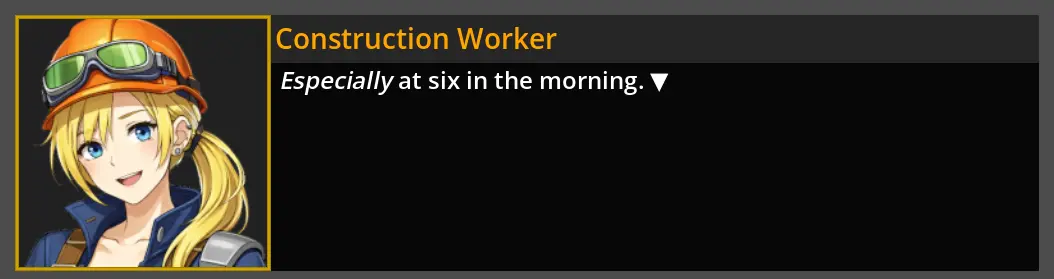
2. In Actors.gd, give the construction worker a colored name: "DisplayName": "[color=orange]Construction Worker[/color]",. Save the script.
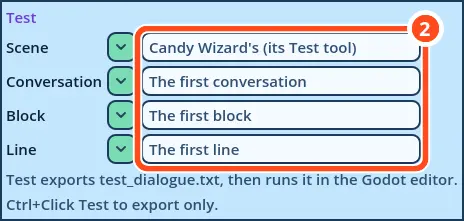
3. Click Test again.
The word "Especially" is displayed in italics, and the construction worker's name in orange:

 Copyright © 2025-2026 Candy Arts