
 Copyright © 2025-2026 Candy Arts
Text Input
In this tutorial, you will learn to let the player type a text, with the Input command: here, the player character's name. In a new scene, Alice meets the player, who just moved in next door, and asks their name. The name the player types is then displayed above the player's Lines.
Before You Start
This tutorial continues the Dialogue of the Choices tutorial. It must be open in Candy Dialogue Creator: if you saved it (File > Save) and closed Candy Dialogue Creator since, open it again with File > Load Dialogue...
The player character is the "Player" Actor, the first entry of the actors dictionary in Actors.gd. It's already there in a new project: you added the other Actors after it in the Dialogue tutorial.
1. Writing the Scene
1. Add a Conversation named "Conversation_3", as in the Conversations tutorial.
2. In its Block_1, add two Spoken Lines:
| Speaker | Portrait | Text |
| Alice | Happy.png | Oh, hello. You must be the new neighbor. |
| Alice | (empty) | I am Alice. What is your name? |
candy_de.actors["Player"]["DisplayName"]
4. In the Mode field, write "Default".
5. In the Instructions field, write "What is your name?"
6. In the Placeholder field, write "Your name".
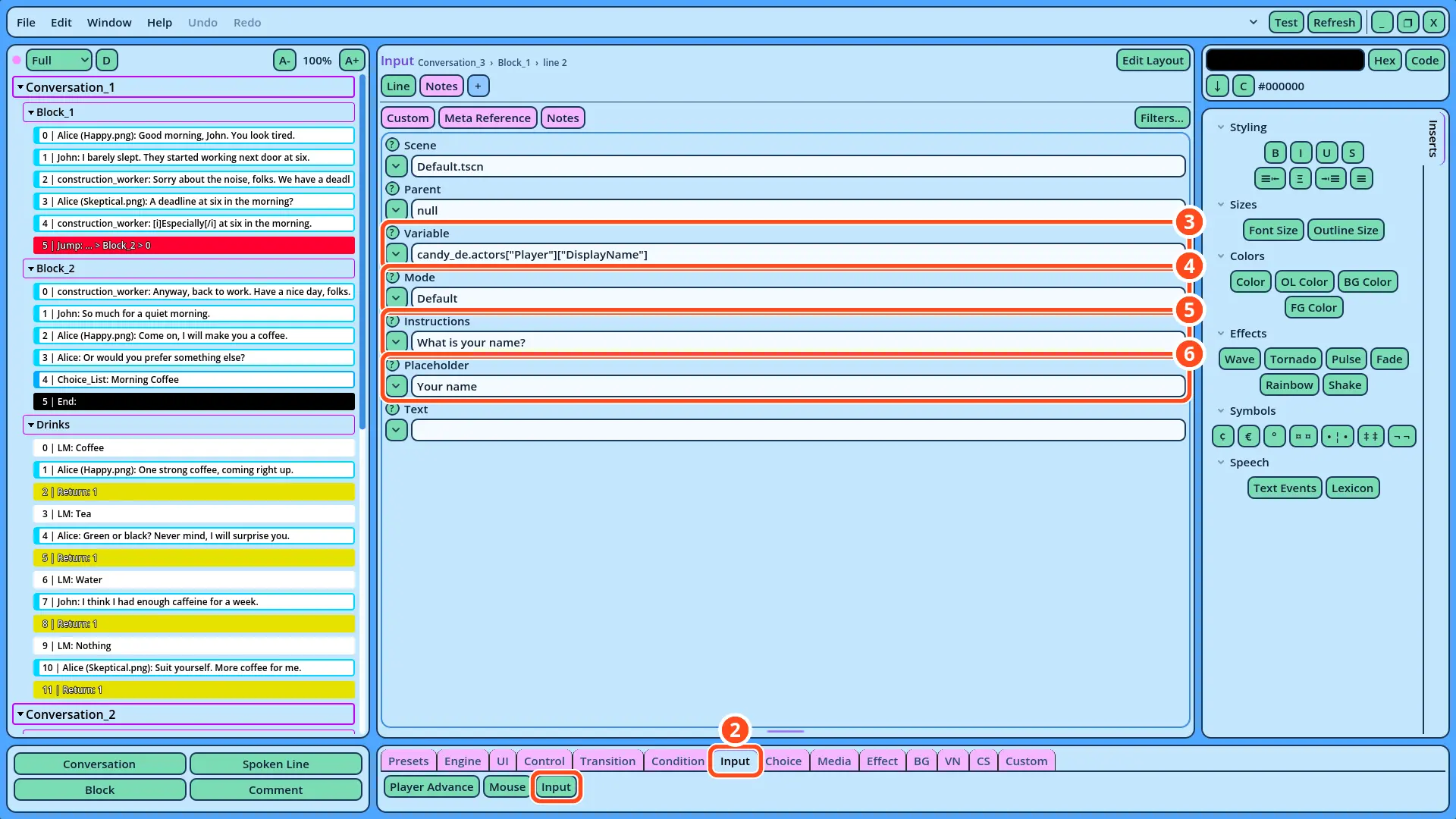
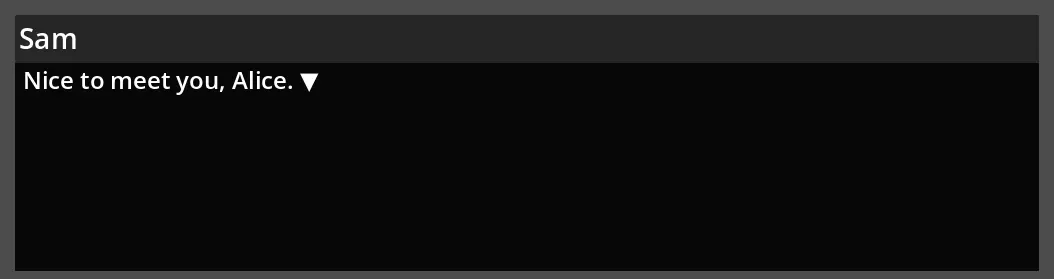
candy_de.actors["Player"]["DisplayName"] designates the DisplayName of the Player, in the actors dictionary: actors is read through candy_de, then ["Player"] designates the Actor Reference, and ["DisplayName"] the property, as dictionary keys are written in GDScript. Since DisplayName is the name displayed above an Actor's Lines, the Player's Lines now display the name the player typed.
The name is stored while the game runs: Actors.gd itself isn't modified. Saving the name with the player's progress is up to your game.
3. The Player's Answer
1. Select the Input command, and add a Spoken Line after it: Player, with no portrait, saying "Nice to meet you, Alice."
2. Select that Line, then open the Transition tab and click End.
4. Testing the Input
1. Right-click Conversation_3 in the Dialogue Navigator, and select Test Here.
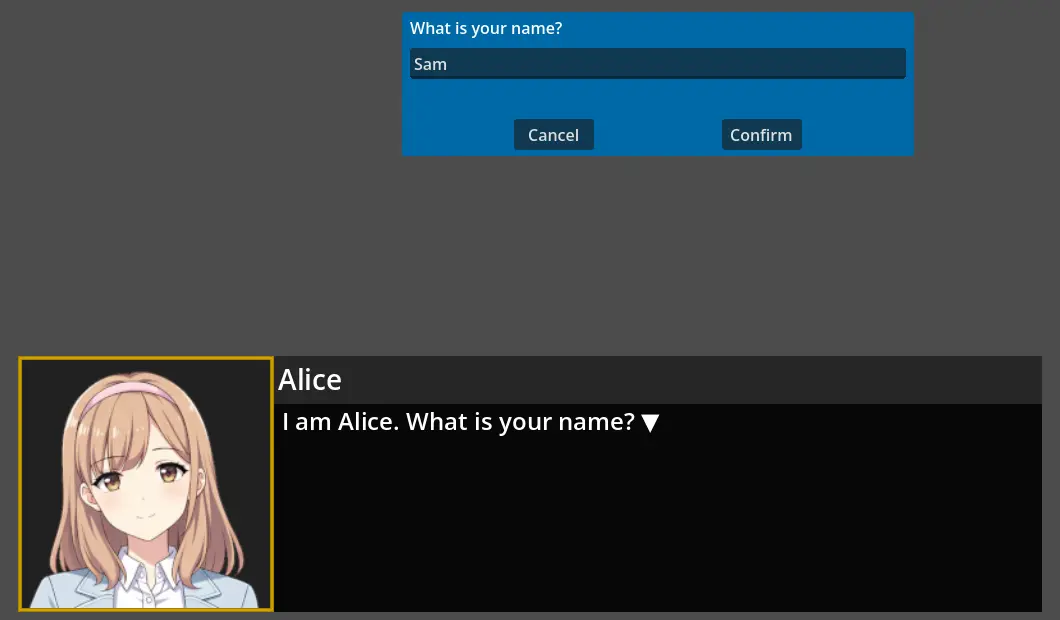
2. After Alice asks "I am Alice. What is your name?", the text input scene opens. Type a name.
candy_de.actors["Player"]["DisplayName"], written exactly so, without a ¢ symbol, and that the Player's Line has Player in its Speaker field.
• The scene opens without the instructions, and nothing is stored: check that the Mode field is "Default". With an empty Mode, the scene isn't configured.
The player's name is now chosen by the player, and every Line the Player speaks displays it.