Copyright © 2025-2026 Candy Arts
Effects
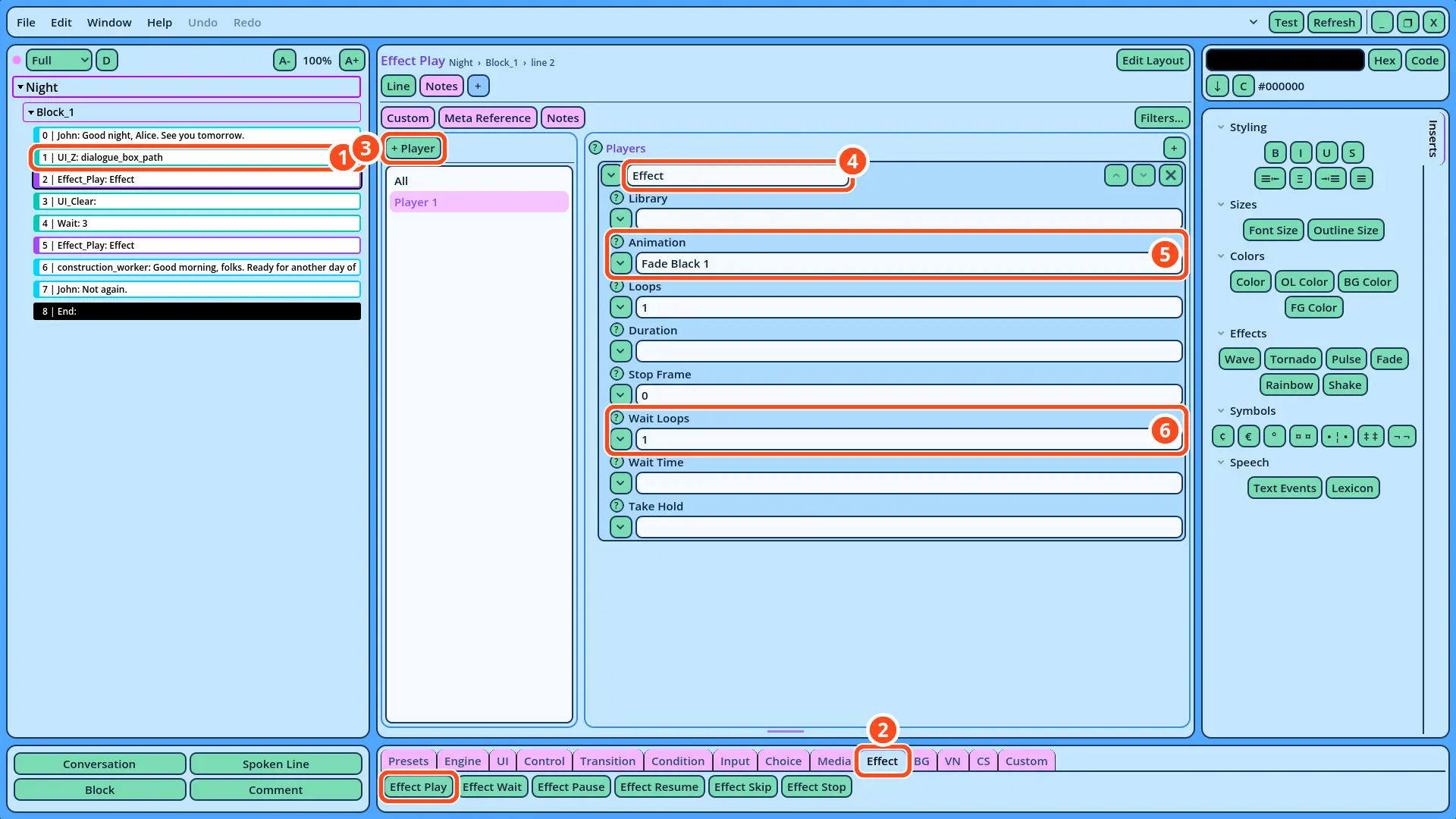
In this tutorial, you will learn to play an effect with the Effect_Play command: a fade to black, and a fade back from it. A new scene shows the passing of a night: John says good night, the screen fades to black for a few seconds, and fades back on the next morning, when the construction worker returns.
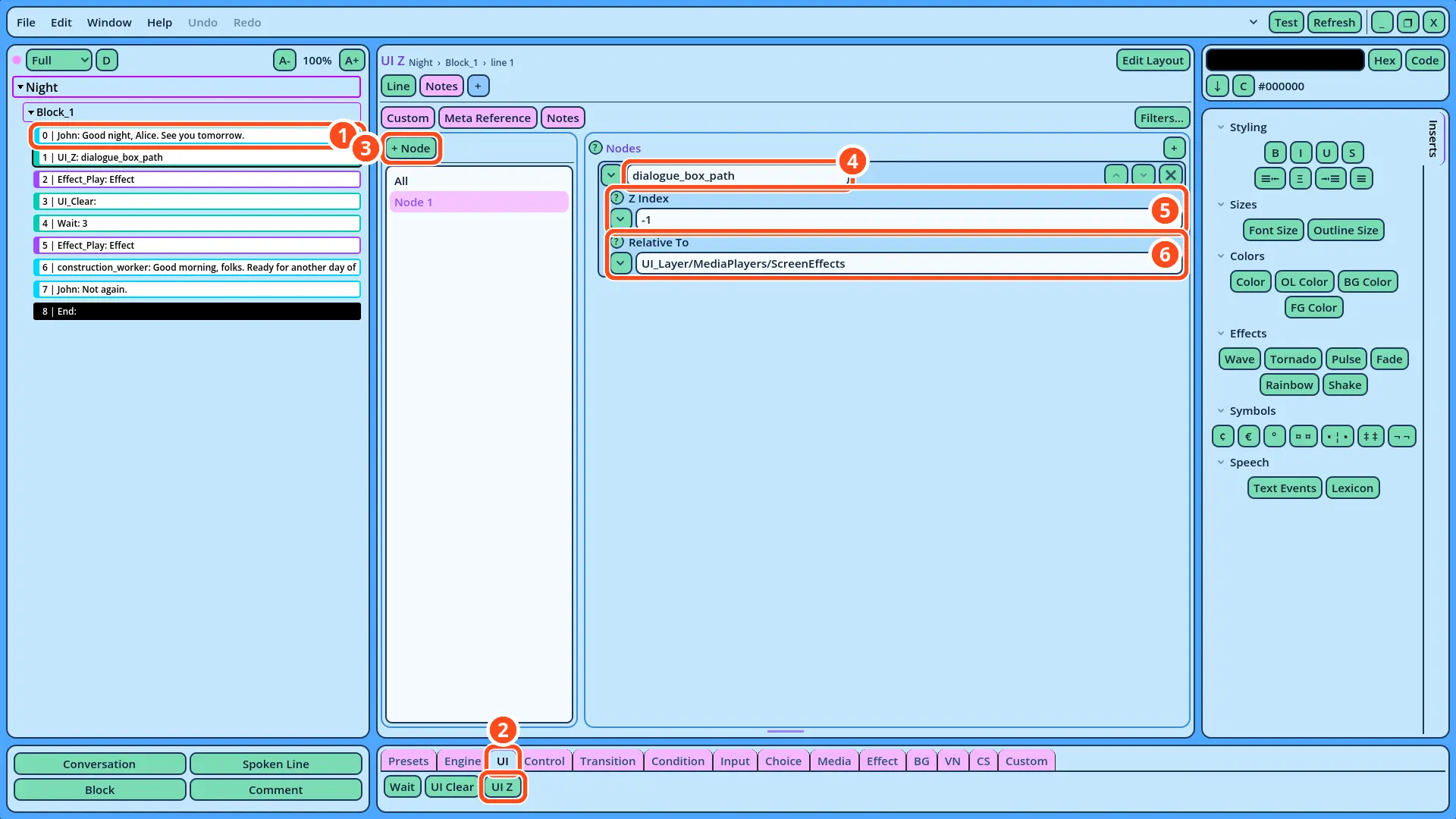
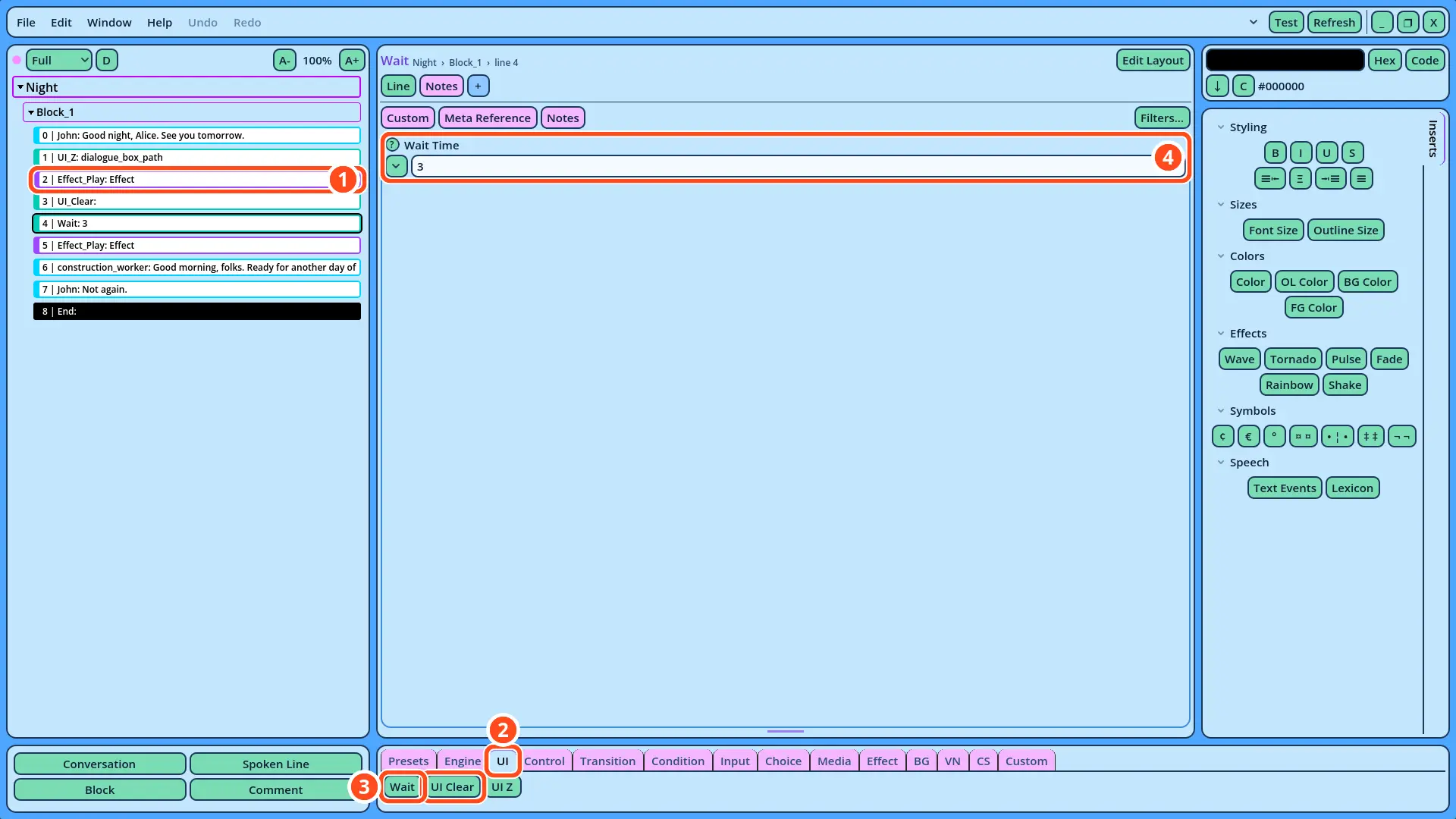
The scene also uses three other commands: UI_Z, which changes the drawing order of the dialogue box, UI_Clear, which clears it, and Wait, which pauses the Dialogue.
Before You Start
This tutorial uses the Actors and portraits of the Beginner tutorials: Alice, John and the construction worker. Write its scene in the Dialogue of your choice: the Dialogue of the Beginner tutorials, or a new one (File > New Dialogue).
The Fade Animations
Effects are animations, played by effect players. The dialogue UI provided with Candy Dialogue Engine contains one, named Effect: the EffectPlayer node of the dialogue UI scene, an AnimationPlayer. Two of its animations change the color of ScreenEffects, a ColorRect that covers the screen:
• "Fade Black 1" turns it from transparent to black, in one second.
• "Unfade Black 1" turns it from black to transparent, in one second.
Both are already in the scene: no file needs to be added to your project.
1. Writing the Scene
1. Add a Conversation named "Night", as in the Conversations tutorial.
2. In its Block_1, add three Spoken Lines, then an End command after the last one:
| Speaker | Portrait | Text |
| John | (empty) | Good night, Alice. See you tomorrow. |
| construction_worker | (empty) | Good morning, folks. Ready for another day of work? |
| John | (empty) | Not again. |