
 Copyright © 2025-2026 Candy Arts
Exporting and Running
In this tutorial, you will learn to export a finished Dialogue to your project, and to run it from your game's code.
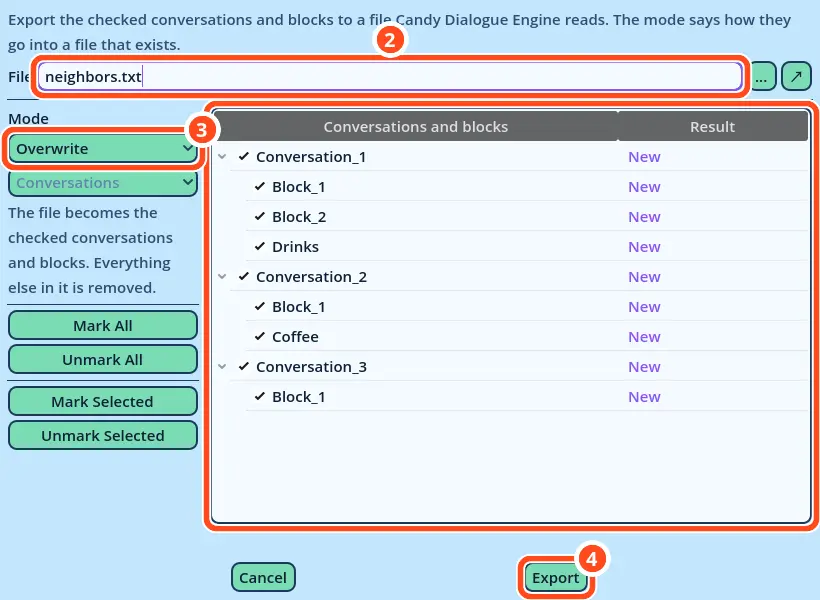
While a Dialogue is being written, the Test button writes it to test_dialogue.txt, which every test overwrites. A finished Dialogue is exported to a file of its own, which your game loads. Here, the Dialogue of the previous tutorials is exported to neighbors.txt.
Before You Start
This tutorial uses the Dialogue of the Playing Media tutorial. It must be open in Candy Dialogue Creator: if you saved it (File > Save) and closed Candy Dialogue Creator since, open it again with File > Load Dialogue...
1. Exporting the Dialogue
1. In Candy Dialogue Creator, open File > Export Dialogue...
2. In the File field, write "neighbors.txt". A file name alone is written to your project's Candy_DE/Dialogues folder.
3. Leave the Mode at Overwrite.
4. Click Export, then Export again in the confirmation window.
candy_ui.load_scripted_dialogue("neighbors")
candy_ui.start_dialogue("Conversation_1", "Block_1", 0)"neighbors" loads neighbors.txt.
The Dialogue remains loaded after it ends. To start another of its Conversations later, call start_dialogue() again, without loading the file again.
start_dialogue()
start_dialogue() starts the loaded Dialogue. It accepts three arguments, which set where the Dialogue starts:
• The Conversation's name: "Conversation_1".
• The Block's name, in that Conversation: "Block_1".
• The Line to start at: its number, counted from 0, or the Reference of an LM command of that Block. 0 starts at the first Line.
For example, the evening scene starts with:
candy_ui.start_dialogue("Conversation_2", "Block_1", 0)| Important: Godot doesn't include .txt files when it exports a game, by default. You need to make a small configuration, or your Dialogues will be missing from the game and won't run. |
*.txt filter to the export preset (step 3).
Your Dialogue is now part of your game: your code runs each of its scenes where and when it needs to.