
 Copyright © 2025-2026 Candy Arts
Changing Variables
In this tutorial, you will learn to change the value of a variable from a Dialogue, with the Set and Flag commands. Alice brings John a coffee, and a coffees flag counts the coffees John drinks. Two If commands check the flag in the same scene, and display a Line when it has the expected value.
Before You Start
This tutorial uses the Actors and portraits of the Beginner tutorials: Alice, John and the construction worker. Write its scene in the Dialogue of your choice: the Dialogue of the Beginner tutorials, or a new one (File > New Dialogue).
1. The Coffees Flag
A flag records something that happened in your game. Flags are stored in the flags dictionary of Flags.gd: each key is a flag's name, and its value is the flag's value when the game starts.
1. In the Godot Editor, open Flags.gd: in the Candy Dialogue tab of the bottom panel, choose Data in the drop-down, then click Flags.
2. In the flags dictionary, add a coffees flag with the value 0, or set its value to 0 if it's already there (the Branching tutorial adds it). Save the script.
var flags = {
	...
	"coffees": 0,
}| Speaker | Portrait | Text |
| Alice | Happy.png | Here is your coffee, John. |
| Alice | (empty) | Would you like another one? |
| John | (empty) | I should not. With the two I had at home, that makes three. |
coffees when John receives his coffee.
1. Select Alice's Line "Here is your coffee, John."
2. Open the Control tab of the Buttons panel, and click Set. The Set command is added after Alice's Line, and its form is displayed.
3. In the Variable field, write: candy_de.flags["coffees"]
4. In the Operator field, write "+=", or click the field's v button and select += in the list.
5. In the Expression field, write "1".
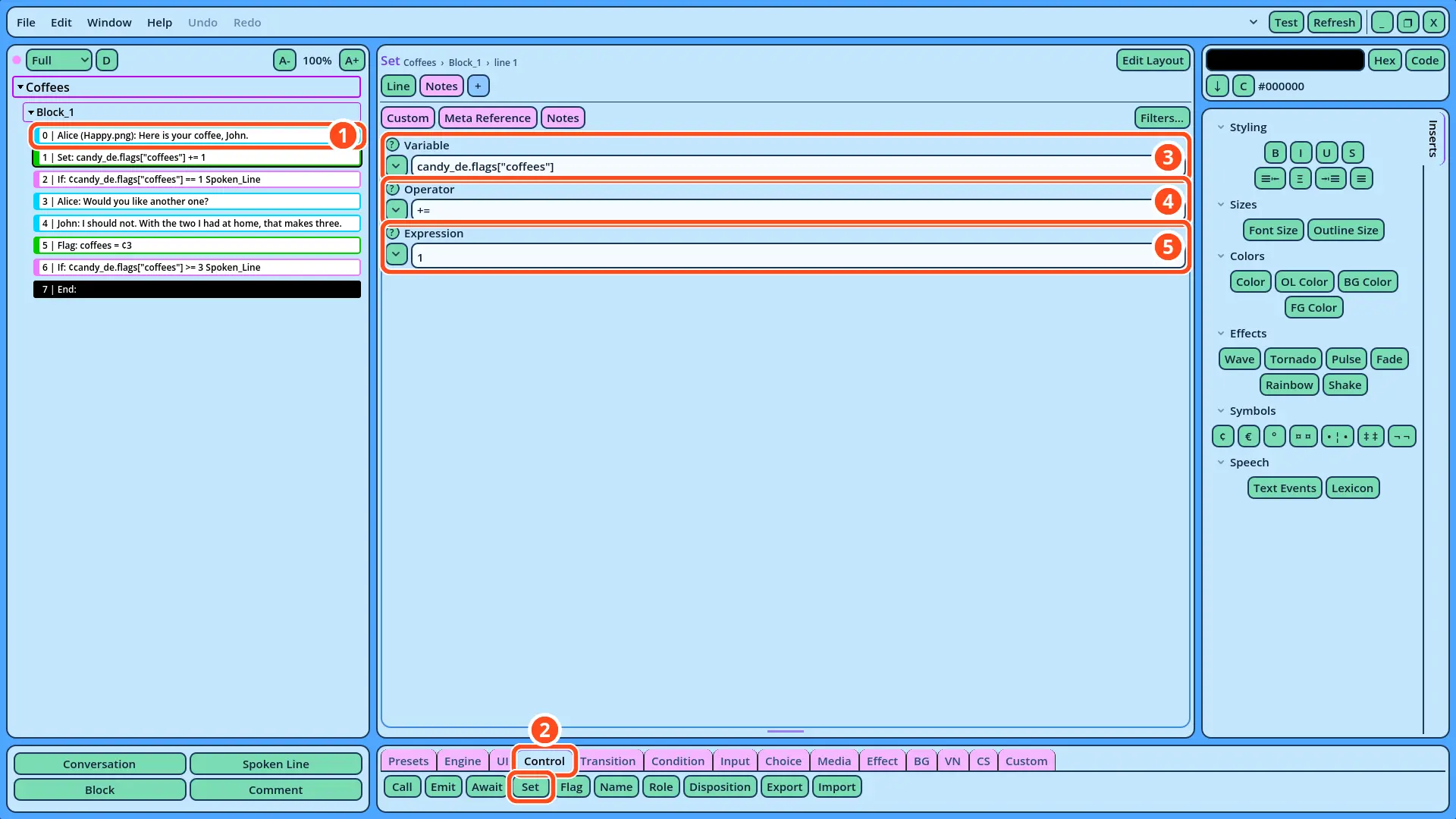
candy_de.flags["coffees"] designates the coffees key of the flags dictionary, read through candy_de. A dictionary key is written between brackets and quotes, as in GDScript.
• The Operator sets how the Expression changes the variable. "+=" adds the Expression to the current value: coffees changes from 0 to 1. "=" replaces the value with the Expression. The field's list contains the other operators.
• The Expression is the value the operator uses.
4. Checking the Change
An If command runs a command only when its Condition is true. Here, it runs a Spoken Line of John when coffees is 1: the Line is displayed only if the Set command did its job.
1. Select the Set command.
2. Open the Condition tab of the Buttons panel, and click If.
3. In the Condition field, write: ¢candy_de.flags["coffees"] == 1
4. In the Type field, write "Spoken_Line", or click the field's v button and select it in the list. The fields of a Spoken Line are displayed below.
5. In the Spoken Line's Speaker field, write "John".
6. In its text field, write "My first coffee today. Thank you."
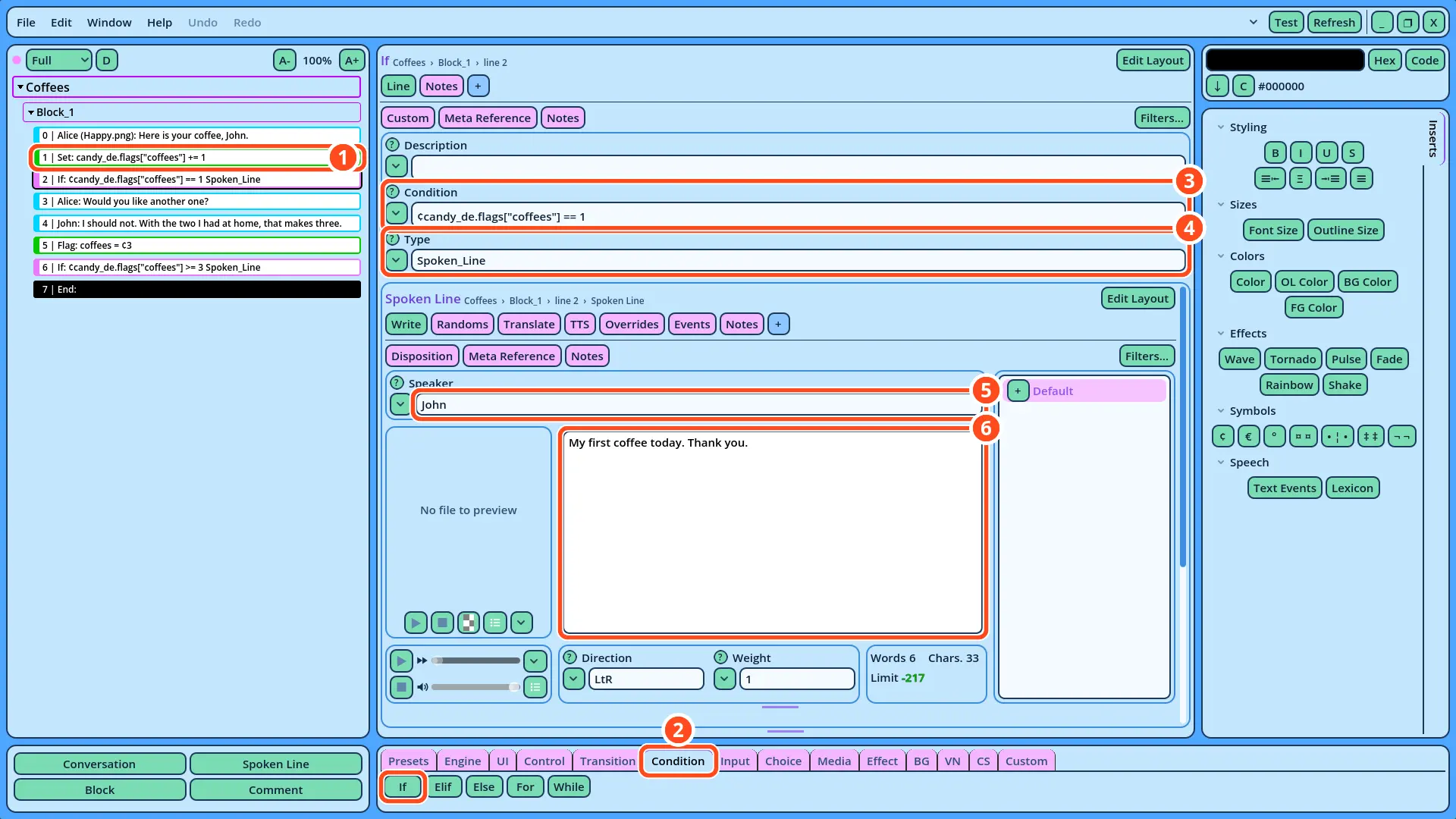
== compares the flag with 1, as in GDScript.
5. Changing a Flag with Flag
A Flag command changes a flag, and only a flag: a value of the flags dictionary. Here, John reveals that he already drank two coffees at home, so the flag is set to 3.
1. Open Edit > Settings..., then the Data page of the Project category. In the Flags section, click Update: coffees appears in the "In use" list. Close the settings. Candy Dialogue Creator reads the flags of Flags.gd the same way it reads the Actors.
2. Select John's Line "I should not. With the two I had at home, that makes three."
3. In the Control tab of the Buttons panel, click Flag. The Flag command is added after John's Line.
4. In the Flag field, click the v button and select coffees, or write "coffees".
5. Leave the Operator field at "=".
6. In the Expression field, write: ¢3
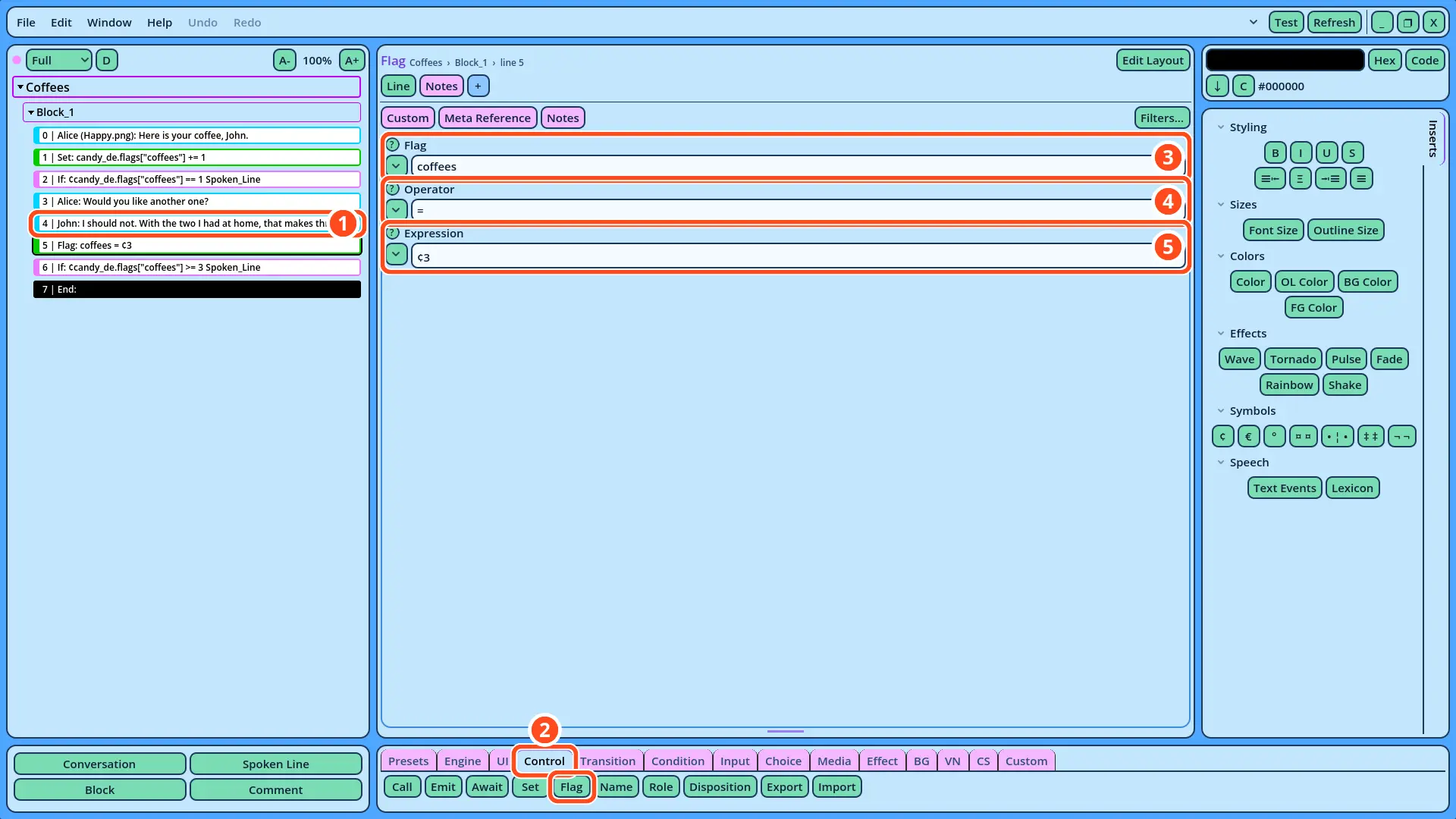
¢candy_de.flags["coffees"] >= 3, and a Spoken Line of Alice, with the portrait Skeptical.png: "Three coffees? You will never sleep tonight."
How Flag Works
The Flag command has the same Operator and Expression fields as the Set command. It differs in two ways, both of them conveniences for flags:
• The Flag field takes the flag's name alone, coffees, instead of the variable's path, and its list contains the flags of Flags.gd.
• In the Dialogue Navigator, the command's row reads "Flag: coffees = ¢3": a change of flag is identified at a glance, among the Set commands that change other variables.
A Set command with the Variable candy_de.flags["coffees"] would change the flag the same way.
Numbers and Text
The Expression ¢3 is evaluated, as the Conditions are: coffees receives the number 3. Written "3", without the ¢ symbol, the Expression would be stored as the text "3", and the Condition >= 3 compares the flag with a number. Candy Dialogue Creator displays a notice under an Expression that would be stored as text.
With the operator "+=", the Expression "1" of the Set command needs no ¢ symbol: added to a number, a text that contains a number is added as a number.
6. Testing the Scene
1. Right-click Coffees in the Dialogue Navigator, and select Test Here.
2. Advance through the scene. After Alice's first Line, John says "My first coffee today. Thank you.": the Set command changed coffees to 1. After John's Line about the coffees he had at home, Alice says "Three coffees? You will never sleep tonight.": the Flag command changed it to 3.
The flag returns to the value of Flags.gd each time the game starts: each test starts with 0 coffees.
If the Test Fails
• John doesn't say "My first coffee today.": check the Set command: Variable candy_de.flags["coffees"], written without a ¢ symbol, Operator "+=" and Expression "1". Check that coffees is 0 in Flags.gd, and that the script is saved.
• Alice doesn't say "Three coffees?": check that the Expression of the Flag command is ¢3, with the ¢ symbol.
• Neither Line of an If is displayed: check that its Type is Spoken_Line, and that its Condition starts with the ¢ symbol.
The scene now records what John drinks: a flag changed in one Dialogue can be read by any other, later in the game.