

Translations
A translation of Candy Dialogue Creator is a gettext file (.po, or its compiled form, .mo) that translates the texts of its interface into one language. Candy Dialogue Creator loads the translations of its translation folders when it starts, and lists their languages in Settings > UI > Language (see Language).
Translation files are edited with a translation tool, such as Poedit, or on a translation platform, such as Weblate or Crowdin. No code is involved.
The Template
A translation starts from the template, candy_dc.pot, in the Translations folder of the Godot project. It contains every text of the interface, in English: menus, Panels and widgets, settings, messages, the Commands' field labels, help and checks, and the texts of Godot's own dialogs, such as the file dialog.
To start a translation, create a new translation from the template in your translation tool, and choose the language. The language is stored in the file's header, so the file name doesn't matter.
The template's first entry is the name of your language, written in your language (Français, Deutsch): the Language setting lists the translation by this name.
A text left untranslated is displayed in English, so a translation can be tested and used before it's complete.
Placeholders
Some texts contain parts that Candy Dialogue Creator replaces or reads. Copy them into the translation unchanged:
• %s and %d: replaced by a value, in their order.
• {name} and ‹name›: replaced by the value they name. Their order can change to fit your language.
• {expression}, {role} and the other symbol names: replaced by your project's Candy Dialogue Engine symbols.
• BBCode tags, such as [b] and [/b].
A text with a context (a msgctxt line) is a word used with two meanings, such as "Save" as a command and "Save" as a kind of file: each meaning has its own entry.
Installing a Translation
Place the file in the Translations folder of Candy Dialogue Creator's user folder (see Installation), then restart Candy Dialogue Creator. Create the folder if it doesn't exist.
A translation can also be placed in a mod's Translations folder (see Mods), or in the Translations folder of the Godot project, to be shipped with Candy Dialogue Creator.
When several files translate the same language, the first file that translates a text provides it: the user folder's files, then the mods', then the files shipped with Candy Dialogue Creator.
Editing a Built-In Translation
Candy Dialogue Creator ships without translations. When it is built with translations in the Translations folder of its Godot project, it copies them at each start into the Translations folder of the user folder, where they can be opened and edited:
• A copy you modified is retained, and your translations replace the built-in ones.
• A copy you left unmodified is replaced when a new version of Candy Dialogue Creator brings a new version of the file.
Texts that a new version adds are displayed in your language even when your modified copy doesn't contain them, since the built-in file still provides them.
Testing a Translation
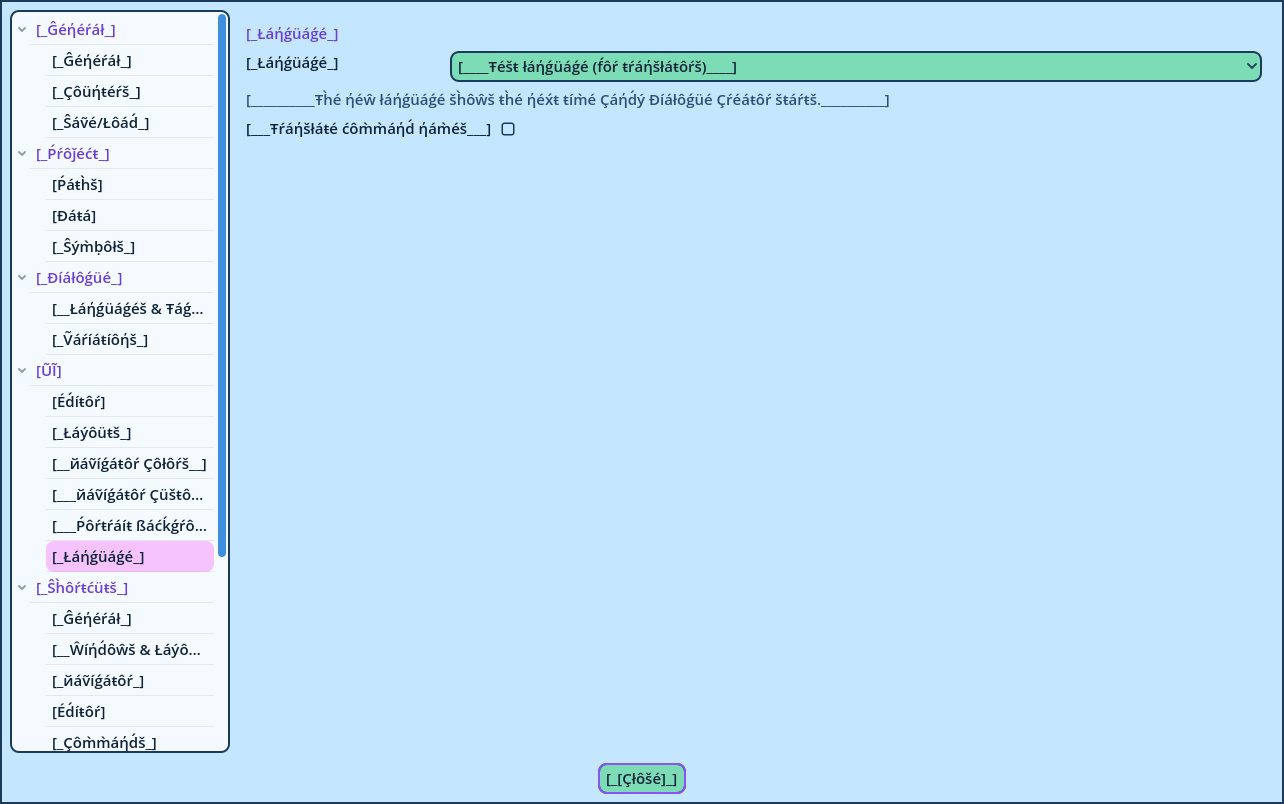
The Test language (for translators), in Settings > UI > Language, displays every translatable text with accents, between brackets, and longer than in English: [Ŝáṽé].
A text displayed without brackets isn't translatable yet. The longer texts also reveal the labels and buttons that would be too narrow in a language whose words are longer than English ones.
godot --headless --path . -s res://Tools/build_translation_template.gd