

Candy Logo

Project Setup
A project profile is connected to your Godot project. From it, Candy Dialogue Creator fills its dropdowns with your Actors, portraits, voice files and scenes, checks the values you enter, and locates the folder Dialogues are exported into. Everything on this page is done once per profile, in Edit > Settings..., under the Project category. Settings are saved when the Settings window closes. 1. Set the Project Root Open Project > Paths.
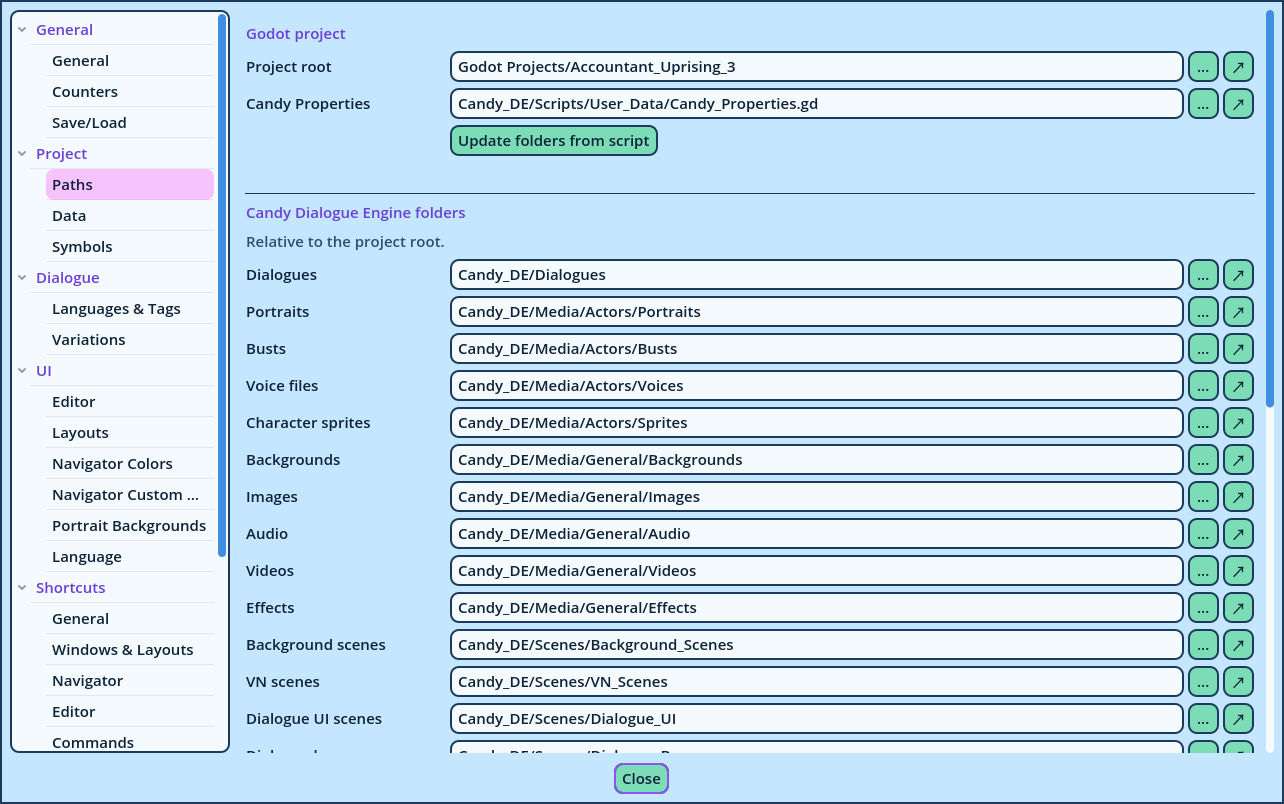
Settings Paths
In Project root, choose the folder of your Godot project: the one that contains project.godot. This is the folder Godot calls res://. The folders listed below it, under Candy Dialogue Engine folders, are where Candy Dialogue Engine stores its Dialogues, portraits, voice files, media and scenes. They are already filled in for a standard Candy Dialogue Engine install, and need no change for one. If your project stores them elsewhere:
  • Check that Candy Properties points at your project's Candy_Properties.gd, then press Update folders from script. Candy Dialogue Creator reads the folders from that script.
  • Or set each folder by hand, with its browse button.
See Paths for the full list. 2. Load the Project Data Open Project > Data. Each section reads one kind of data from one of your project's scripts: Actors, Roles, Flags, Dispositions, Effect players and CS paths. The scripts and variables are already filled in for a standard install. Press Update all. Each section then lists what it read under Loaded, and what Candy Dialogue Creator applies under In use. Press Update all again whenever you add an Actor, a Role or a Flag to your game. See Data to exclude values or add some by hand. 3. Load the Symbols Open Project > Symbols. Candy Dialogue Engine identifies some kinds of values by a symbol in front of them, such as ¢ for an expression or ° for a Role. A project can customize these symbols, so Candy Dialogue Creator reads yours and applies them in help texts, dropdowns, checks and the Symbols inserts. Press Update from scripts to read them from Candy_Properties.gd and CandyRef_Shortcuts.gd. See Symbols. 4. Add Languages and Tags If your game is translated, or uses Variations, open Dialogue > Languages & Tags and add your languages and tags. This step can also be done later: see Variations. After Closing the Settings When the Settings window closes, Candy Dialogue Creator scans the project's folders. From then on:
  • Dropdowns list your Actors, files and scenes.
  • Portraits and voice files can be previewed.
  • Test and File > Export Dialogue... write into your Dialogues folder.
Files added to the project later aren't listed until the folders are scanned again: press Refresh in the top bar.