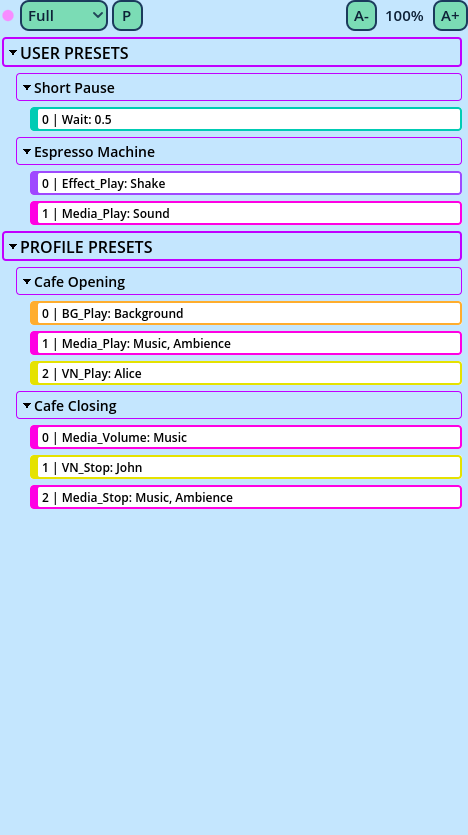
Presets
A Preset is a group of Lines inserted in one click, with their data already filled in. Use Presets for anything you write again and again:
- A Spoken Line with a given speaker, portrait and settings already set.
- The Lines that open or close every scene: a background, music, a fade.
- A choice menu with your usual categories.
- An If, Elif, Else chain ready to fill in.
Where Presets Live
Presets are stored in two special Conversations, outside the Dialogue:
| Conversation | Available in |
USER PRESETS | Every profile of the user. |
PROFILE PRESETS | This profile only. |
[Greetings] Wave
[Greetings] Bow
[Scenes] Open the shop
The category groups the Presets in the lists where you pick them. The button itself only displays the rest of the name: "Wave".
Inserting a Preset
A Preset is inserted with a button of a Dialogue Buttons panel.
To add the button: right-click a Dialogue Buttons panel, choose Buttons, and add the Preset from the Available list, where Presets are listed after the Commands. In the default layout, the Presets tab under the Dialogue Editor is a panel meant for them.
Then:
- Click the button to insert the Preset's Lines after the selection.
- Ctrl+click to insert them before it.
A Preset can also be assigned a keyboard shortcut, in Settings > Shortcuts > Presets.
When a user Preset and a profile Preset have the same category and name, the lists mark them (U) and (P).
Sharing Presets
Presets are stored in two files in Candy Dialogue Creator's user folder (see Data Files):
Users/<user>/user_presets.txt
Users/<user>/<profile>/profile_presets.txt
To share Presets, send the file: placed at the same path on another computer while Candy Dialogue Creator is closed, it replaces the Presets there.
A preset file stores the symbols its Lines are written with. When they differ from the profile's, Candy Dialogue Creator asks to update the file as the profile opens, and leaves its Presets out until it's updated (see Updating Symbols).
Presets from Candy Dialogue Creator 1.1
Preset files created with 1.1 must be converted: see Converting 1.1 Files.