

Navigator Colors
Settings > UI > Navigator Colors
The appearance of the rows of the Dialogue Navigator: Conversations, Blocks, and the Lines of each Command. With distinct colors per Command, the structure of a Dialogue is readable at a glance.
These colors belong to the theme chosen on the Theme page: each theme has its own set, and a change made under one theme is never displayed under another.
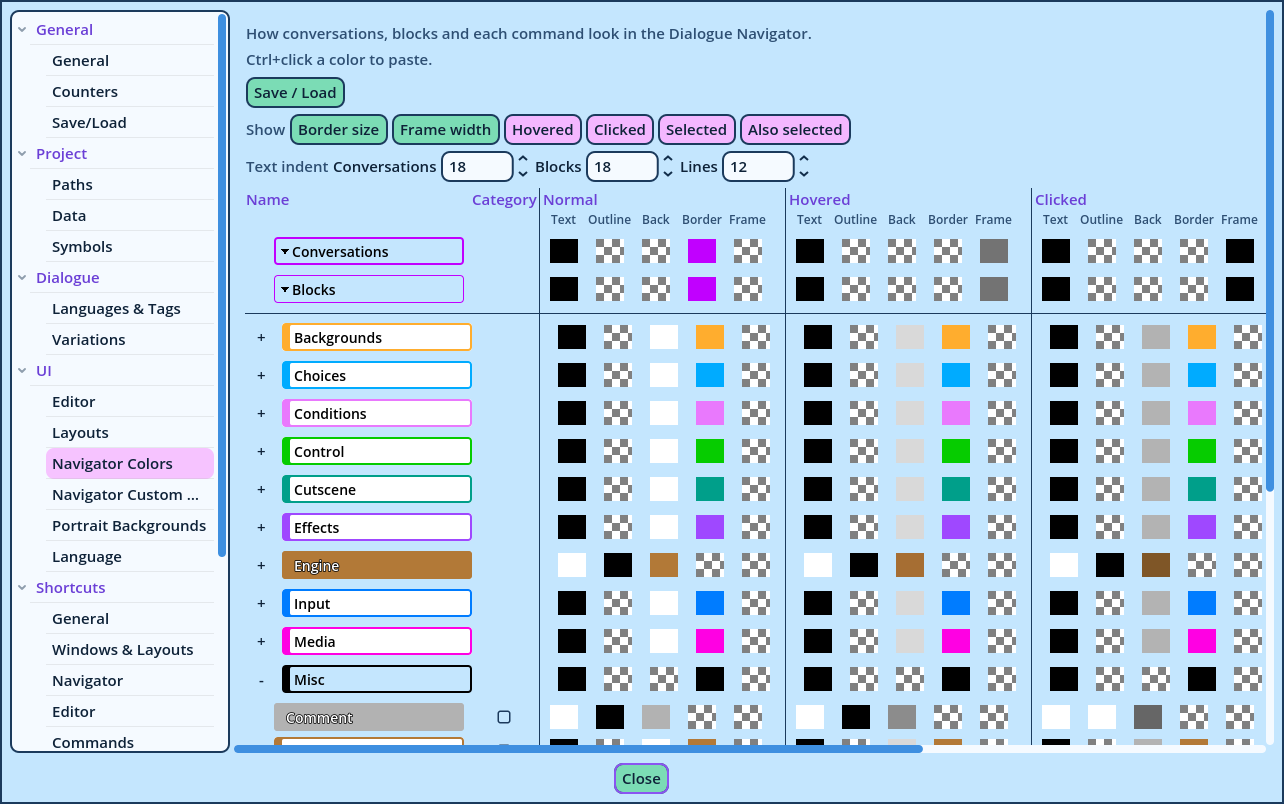
| State | When |
| Normal | The row's ordinary state. |
| Hovered | The mouse is over the row. |
| Selected | The Line open in the Dialogue Editor. |
| Clicked | While the mouse button is down on the row. |
| Also selected | The other selected rows. |
| Color | What it colors |
| Text | The row's text. |
| Outline | The outline of the text. |
| Back | The row's background. |
| Border | The border inside the row's edges. |
| Frame | The frame drawn around the row. |
| Size | Description |
| Border size | The width of the border on each side: left, top, right and bottom. A border on the left side only forms a colored strip. |
| Frame width | The width of the frame around the row. |
| Text indent | Above the table: where the text starts in Conversation rows, Block rows and Lines, in pixels from the row's left edge. |
- Ticked, the Command uses the colors and sizes of its category. Change the category's row to change all its Commands at once.
- Unticked, the Command has its own.
- Save Colors... asks for a name and a level, user or project, like any saved layout.
- Load Colors lists the saved sets. Loading one replaces the page's settings for the current theme.