

Fields Widget
The Fields widget displays some of a Line's fields as a form. It's the widget every Command starts with, and most forms consist of one or several of them.
How a field itself works is explained in Fields. This page is about choosing and arranging the fields a widget displays.
Choosing the Fields
Right-click the widget and choose Fields....
- Displayed in this area, on the left, lists the fields the widget displays, in their order.
- Available, on the right, lists the Command's other fields.
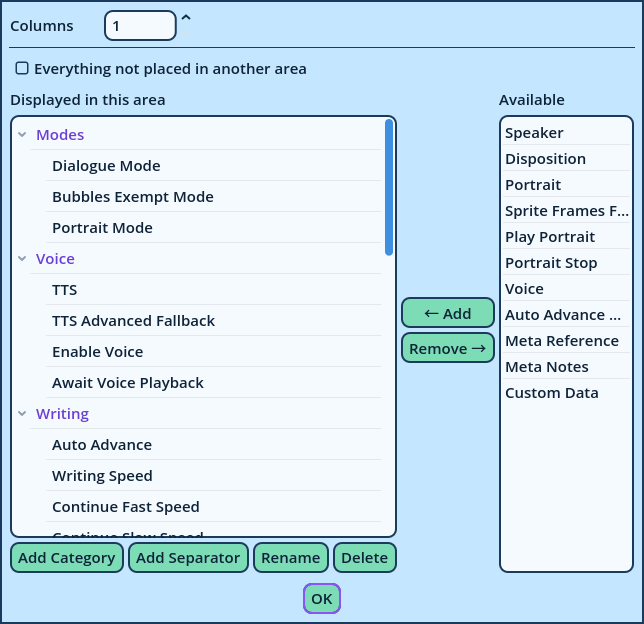
| To | Do this |
| Add fields | Select them on the right and press ← Add. They are placed in the selected category, or at the end. |
| Remove fields | Select them on the left and press Remove →. |
| Reorder fields | Drag them on the left. |
| Group fields | Press Add Category, name it, then add or drag fields into it. In the form, a category has a title that folds and unfolds it. |
| Draw a line between fields | Press Add Separator: a horizontal line after the selected field. |
| Rename a category | Select it and press Rename. |
| Delete categories and separators | Select them and press Delete. The fields of a deleted category return to Available. |
- Untick one to leave it out of this widget.
- Drag one to move it among the fields beside it.
- Add Separator works among them too.
| Option | Description |
| Reference | The Field Tree this widget follows: this widget then displays only the entry picked there. |
| CLEAR in drop-downs | Adds CLEAR at the bottom of each field's dropdown: it empties the field. |
| RESET in drop-downs | Adds RESET at the bottom of each field's dropdown: it restores the field's default value. |
| Minimum Size, Maximum Size | The minimum and maximum size of the widget's area. |