

Counters
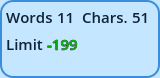
The Counters widget counts the words and characters of a Variation's text, and compares them with a limit and with another Variation.
It follows your typing: the numbers change at each key, before the text is written to the Dialogue.
| Counter | Description |
| Words | The words of Reference 1. |
| Chars. | The characters of Reference 1. |
| Limit | The characters of Reference 1 against the Spoken Text Limit: -100 is 100 characters under the limit, +20 is 20 over it. |
| C. Diff. | The characters of Reference 1 minus those of Reference 2: +12 when Reference 1 has 12 more, -12 when it has 12 fewer. |
| W. Diff. | The same, for words. |
‡boom‡, symbols included) and lexicon escape symbols (¬) aren't counted, and a doubled symbol (‡‡, ¬¬) counts as the one it displays. A word is anything between two spaces.
The Limit
The limit is the number of characters a Spoken Line's text should stay under, for example what fits in your dialogue box. It's set in Settings > General > Counters, with a margin.
The Limit counter changes color as the text grows: one color under the limit, another within the margin before it, a third over it. The limit is a guide: nothing stops you from writing more.
Colors
Each number has its own color, and the two differences change color when Reference 1 has more, less or as much as Reference 2. All of these are set in Settings > General > Counters, for every Counters widget. See Counters settings.
Options
Right-click the widget and choose Options.
| Option | Description |
| Reference 1 | Counts the Variation picked in the Variation Selector with this reference. |
| Reference 2 | C. Diff. and W. Diff. compare Reference 1 with the Variation picked in the Variation Selector with this reference. |
| Displayed, Available | Which counters are displayed. Move them with ← Add and Remove →, and drag the displayed ones to reorder them. |
| Columns | How many columns the counters are split across. |
| Minimum Size, Maximum Size | The minimum and maximum size of the widget's area. |