

Filters
A filter is a toggle that shows or hides part of a form. Filters shorten a form: what is rarely needed stays one click away instead of occupying space.
The filters of a tab are displayed as a row of toggles above its areas, in the filter bar. In the default Spoken Line form, the Write tab has filters for the Disposition, the Meta Reference and the notes.
Using Filters
Click a filter to show or hide what it covers. Hover it to see what it covers.
- A filter that is on shows what it covers. Off, it hides it.
- What no filter covers is always displayed.
- Drag a filter along the bar to move it.
| Button | What it does |
| New | Creates a filter, after asking for its name. |
| Rename | Renames the selected filter. |
| Delete | Deletes the selected filter. What it covered is displayed again. |
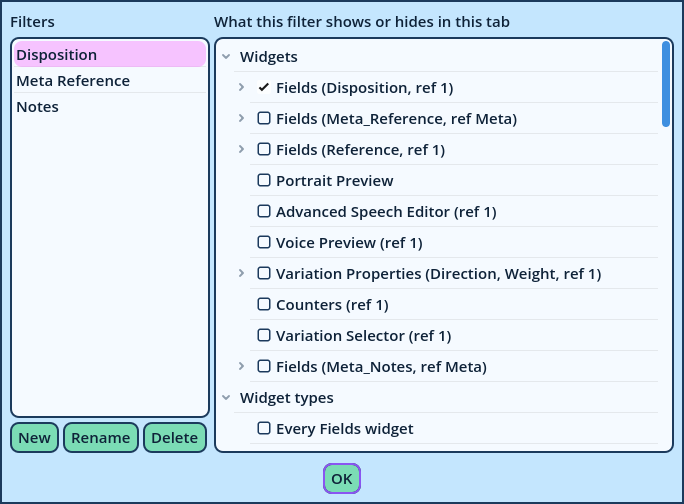
| Under | Ticking covers |
| Widgets | One widget of the tab, whole. Unfold a widget to cover only part of its contents instead: single fields, a category of a Fields widget, or one of its separators. |
| Widget types | Every widget of a kind in the tab, such as every Portrait Preview. |
| Fields in every widget | A field, wherever the tab displays it. |
- Filters belong to their tab: they are moved, removed and reset with it, and saved with every layout that contains the tab.
- Filters are per Dialogue Editor, like the line layouts.
- Filters apply in the Editor's Edit Layout mode too, so that the tab looks the same: turn a filter off to edit what it hides.
| To | Use |
| Show or hide something with a click, while working | A filter. |
| Remove a field from a form permanently | Fields... in the Fields widget's menu (see Fields widget). |
| Leave fields in the form, folded away | A category in a Fields widget, which folds. |
| Set rarely used widgets apart | A tab of their own. |