

Inserts
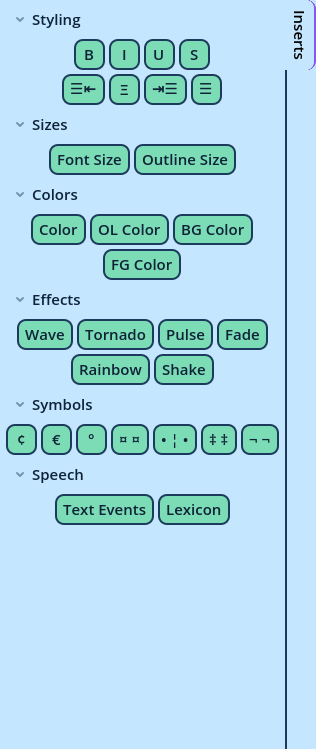
An insert is a piece of text that a button types into the field being edited. The Inserts panel displays those buttons, sorted in categories that fold.
Inserts spare the typing of BBCode tags, of your project's symbols, and of anything written often: a variable to display, a pause, a character's name.
| Situation | What is typed |
| No text selected | Left and Right are typed at the caret, and the caret is left between them. |
| Some text selected | Left is typed before the selection and Right after it. If the insert has a Middle, it replaces each space inside the selection. |
[b] as Left and [/b] as Right. With "very" selected, it produces [b]very[/b].
A button's tooltip lists its three parts.
Built-In Inserts
A new Inserts panel displays the built-in inserts:
- The BBCode tags, in groups: styles (bold, italic, underline, strikethrough), alignment, colors, font, effects, formatting, lists and tables, and data (hints, links, images).
- Symbols: your project's Candy Dialogue Engine symbols, as set in Settings > Project > Symbols. They follow that setting. The Text Event insert types the two marker symbols, with the caret between them for the Event's name.
- A Text Event runs Commands while a Spoken Line is written, when the writing reaches its marker in the text:
Wait‡boom‡... what was that?Picking one types its marker. - A Lexicon keyword is a word Candy Dialogue Engine formats in the text, with a tooltip or a link. Picking one types the keyword.
| Drop-down | Lists |
| Text Events | The Text Events the Variation can use: the Line's own (created in the Text Event Editor), and those of your project's Text Events dictionary. The tooltip of each item names its origin. |
| Lexicon | The Lexicon keywords the Variation can use. |
| Speech Inserts | Both, in one drop-down, under a heading each, for a panel with room for only one. |
* for every Variation, Default* for every Variation whose name starts with Default, or a Variation's exact name. A drop-down lists every entry that matches the Variation.
List Sources
The drop-downs read your project's Lexicon.gd and Text_Events.gd each time the project is scanned: when the profile opens, and when you click Refresh in the top bar. After changing one of them, click Refresh.
Which scripts and variables are read is set in Settings > Project > Data, under Speech inserts (see Data).
The marker's symbols are the Text Event symbols of Settings > Project > Symbols (see Symbols). Without them, the Text Events drop-down displays a note.
Your Own Inserts
Right-click the panel and choose Create Insert....
| Field | Description |
| Type | User: available in every profile of the user. Profile: only in this profile. |
| Category | The category the insert is listed under in the Buttons dialog. Type a new one, or pick an existing one. |
| Label | The text on the button. |
| Left | Typed before the selected text. |
| Middle | Replaces each space inside the selected text. Unused without a selection. |
| Right | Typed after the selected text. |
| Text, Background, Text Outline, Button Outline | The button's colors. An unchecked color follows the theme. |
{color} where the color belongs, as in [color={color}].
To change or remove an insert, right-click its button and choose Edit Insert or Delete Insert. Deleting an insert removes it from every Inserts panel.
A new insert isn't displayed in the panel automatically: add it with Buttons, below.
Button Selection
Right-click the panel and choose Buttons.
- Displayed, on the left, lists the panel's categories and the inserts in each.
- Available, on the right, lists the inserts the panel doesn't display yet, grouped by the category they were saved under, then the speech drop-downs, under Speech.
| To | Do this |
| Add inserts | Select a category on the left, select the inserts on the right, and press ← Add. Double-clicking an insert adds it too. |
| Remove inserts | Select them on the left and press Remove →. |
| Reorder | Drag inserts on the left, into any category. With no insert selected, dragging moves the selected categories. |
| Add a category | Press Add Category. |
| Add a line between inserts | Press Add Separator: a horizontal line after the selected insert. |
| Start a new row | Press Add Row: the inserts after the selected one start on a new row. |
| Rename a category | Select it and press Rename. |
| Delete categories, separators and rows | Select them and press Delete. The inserts of a deleted category return to Available. |
| Option | Description |
| Reference | The color tags use the color of the Color Selector with this reference. |
| Layout, Columns, Minimum button width, Alignment | How the buttons are arranged, as in the Dialogue Buttons panel. |
| Scroll when the buttons don't fit | When off, the panel can't shrink below its buttons. |
| Minimum Size, Maximum Size | The minimum and maximum size of the panel's Area. |