

Candy Logo

Saved Layouts
Anything you arrange can be saved under a name and loaded back later, in this profile or another. A saved layout is a file, so it can also be shared. A layout saves everything inside it: Areas, Panels, widgets, the fields they display, and all their settings. Loading it restores it whole, with nothing to configure again. What Can Be Saved
KindContainsSaved and loaded from
Window layoutEvery window, with all its Areas and Panels.Window > Save Layout... and Load Layout.
Area layoutOne Area of a window, with everything in it.The Area's menu, in Edit Layout mode.
Panel layoutOne Panel's settings. For a Dialogue Editor, all its line layouts. For a Tabs panel, all its tabs.The Panel's right-click menu.
Line area layoutOne area of a Command's form, with everything in it.The area's menu, in the Dialogue Editor's Edit Layout mode.
Widget layoutOne widget's settings.The area's menu, in the Dialogue Editor's Edit Layout mode.
Each kind is stored separately: a Panel layout is only offered to Panels of the same kind, a widget layout to widgets of the same kind, and a line area layout only to the Commands it fits. The colors of the Dialogue Navigator are saved the same way, from Settings > UI > Navigator Colors. Saving Choose the Save … Layout... item. The window that opens lists the layouts already saved, then asks for:
  • A Name.
  • The level: tick User level (every project) so that the layout is available in every profile of the user. Unticked, it's saved for this project only.
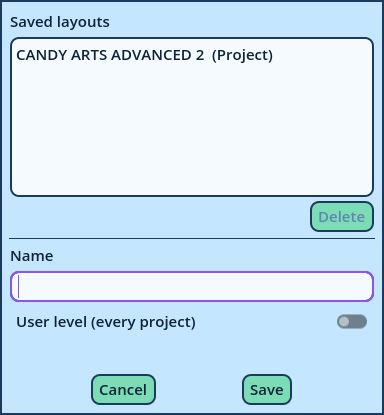
To replace a saved layout, click it in the list: its name and level are filled in. Candy Dialogue Creator asks for a confirmation before replacing it.
Save Layout Dialog
To delete a saved layout, click it in the list and press Delete. Loading The Load … Layout item opens a list of the saved layouts, the project's and the user's. Pick one.
  • A window layout replaces the layout of every window.
  • An Area layout replaces the Area it's loaded on.
  • A Panel or widget layout replaces the settings of that Panel or widget.
Loading can't be undone with Undo. To return to the current arrangement later, save it first. Quick Layouts Window layouts you switch between often can be listed directly in the Window menu, under Quick Layouts. Choose them in Settings > UI > Layouts: tick the saved window layouts to list (see Layouts settings). The Next Quick Layout and Previous Quick Layout shortcuts cycle through them. They have no keys by default: assign keys to them in Settings > Shortcuts > Windows & Layouts. Typical quick layouts: one for writing, one for translating, one for a second screen. Sharing Layouts Saved layouts are files in Candy Dialogue Creator's user folder (see Installation):
LevelFolder
UserUsers/<user>/Layouts
ProjectUsers/<user>/<profile>/Layouts
Inside, one folder per kind: Windows, Areas, Line Areas, Panels, Widgets and Navigator Colors. Panel and widget layouts are sorted further, in a folder per kind of Panel or widget. To share a layout, send its file. The recipient places it in the same folder on their computer, and it is then listed in their Load list. The Built-In Layout Window > Reset Layout replaces the layout of every window with the one Candy Dialogue Creator ships with, including the form of every Command. To return to your own layout later, save it first.