

Candy Logo

Field Tree
The Field Tree lists the entries of a Line: the categories, choices and timers of a Choice List, the players of a Media Play. The Fields widgets then display only the picked entry, so a long form becomes a short one. It only lists entries: the parts of a Line that a + button adds. Plain fields aren't listed.
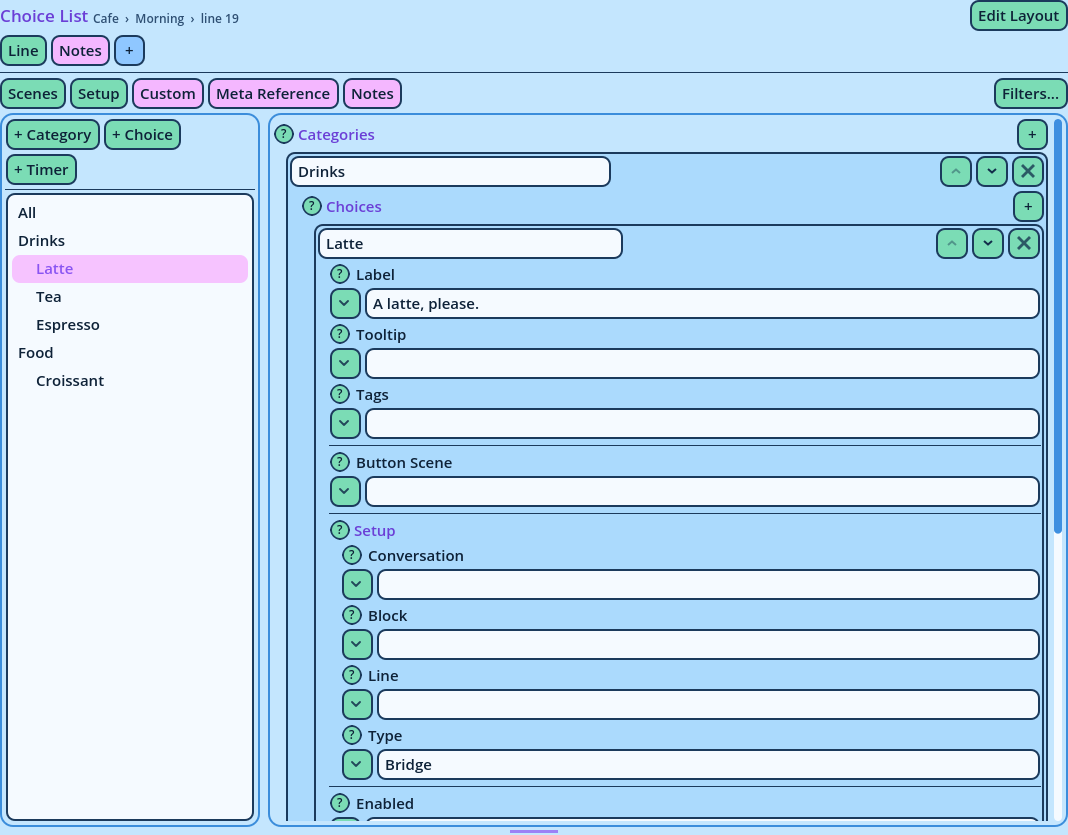
Choice List Form
Using It
  • Click an entry to display only that entry, and what's inside it, in the Fields widgets that have the same reference.
  • Click All to display everything.
Entries are nested as they are in the Line: a category's choices are under it. Named entries display their name. Entries whose name is a value, such as a media player's, are numbered instead: Player 1, Player 2. Adding Entries A button per kind of entry adds one, such as + Category, + Choice and + Timer. A button for a nested entry adds to the entry that is selected: + Choice adds a choice to the selected category, or to the category of the selected choice. It's greyed until one is selected. The new entry is selected, so its fields are displayed at once. To rename, move or remove an entry, use its header in the Fields widget (see Lists and Entries). Options Right-click the widget and choose Options.
OptionDescription
ReferenceFields widgets with this reference display the entry picked here.
Add buttonsThe position of the add buttons: Above the list or Below the list.
Button orderDrag the buttons into the order they are displayed in.
Minimum Size, Maximum SizeThe minimum and maximum size of the widget's area.
In a Layout A Field Tree has no effect by itself: place it beside a Fields widget with the same reference. A Fields widget with another reference isn't affected, and always displays everything. For a Command with no entries, the Field Tree only displays All.