

Edit Layout
A window is divided into Areas. An Area either displays one Panel, or is split in two Areas, side by side or one above the other. Any layout is built by splitting Areas repeatedly.
To change the layout, turn on Window > Edit Layout (Ctrl+L). Every Area is then outlined, and every Panel receives a header. The outlines are drawn over the Panels, so they take no room. Turn the mode off once the layout is arranged: the headers and outlines disappear, and the Panels recover the headers' space.
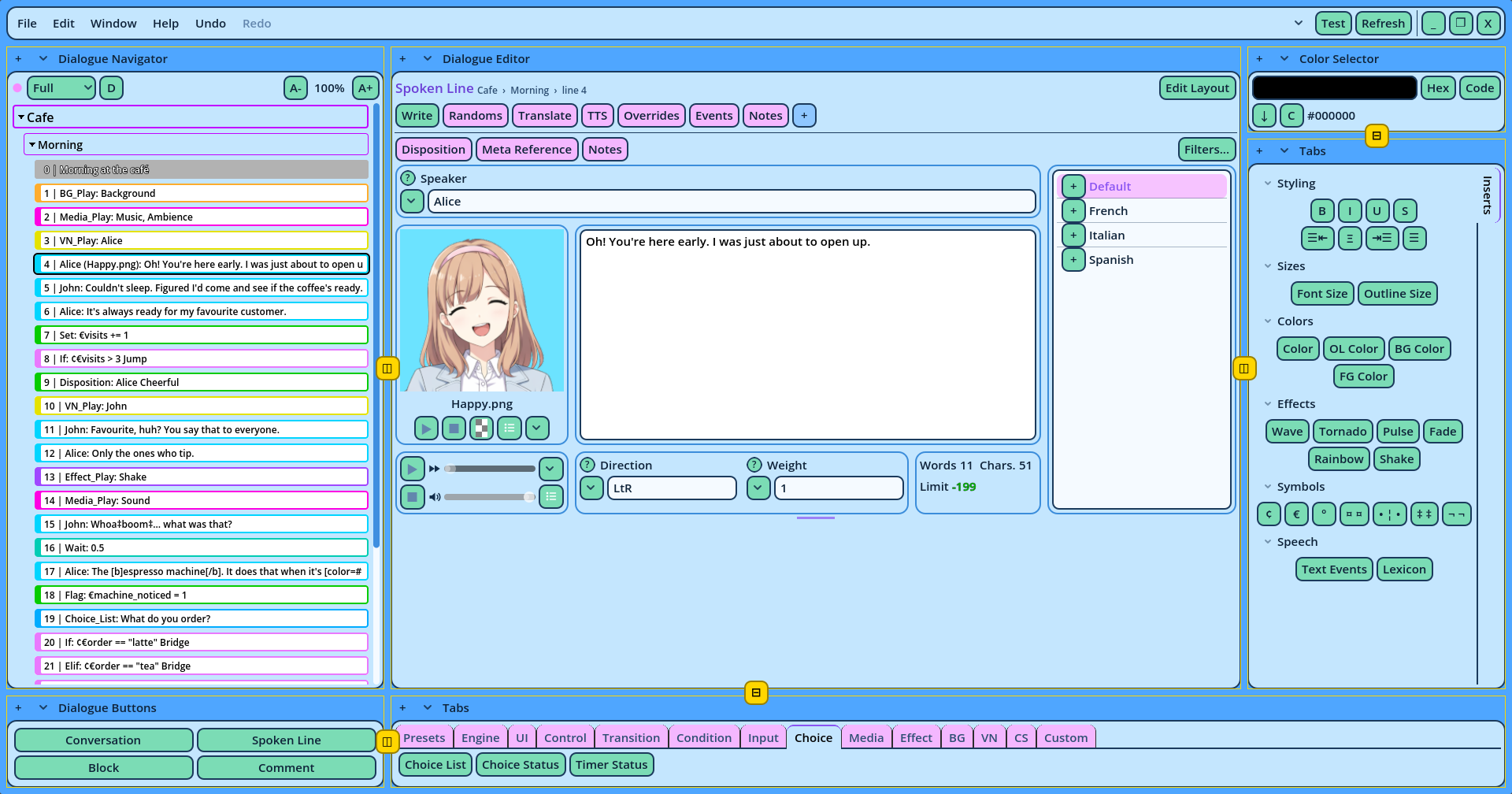
| Control | What it does |
| + | Opens the Area's menu. |
| The arrow | Changes the Panel the Area displays. |
| The name | The Panel's name. |
| Item | What it does |
| Split Left, Split Right, Split Up, Split Down | Splits the Area in two, with a new Area on that side. The new Area starts with the same kind of Panel. |
| Options | The Panel's settings, and the Area's minimum and maximum size. |
| The Panel's actions | Such as Buttons for a Dialogue Buttons panel. |
| Save Panel Layout..., Load Panel Layout | Saves the Panel's settings under a name, or loads saved ones. |
| Save Area Layout..., Load Area Layout | Saves the Area with its Panel, or replaces it with a saved Area. |
| Open in New Window | Opens a new window with a new Panel of the same kind. This Area stays where it is. |
| Close Area | Removes the Area. The neighboring Area expands into its place, and the other Areas retain their size. |
| Item | What it does |
| Add Area on the Left, on the Right, Above, Below | Adds an Area along the whole side of this one. This is how an Area is added under a row of several Areas, for example. |
| Insert Area Between | Adds an Area between the two sides. |
| Swap Left and Right, Swap Top and Bottom | Exchanges the two sides. |
| Stack Top and Bottom, Place Side by Side | Turns the split the other way. |
| Equal Sizes | Sets both sides to the same size. |
| Remove Left Side, Remove Right Side (or Top, Bottom) | Removes one side, with everything in it. The item names the side's contents. |
| Save Area Layout..., Load Area Layout | Saves the Area with everything in it, or replaces it with a saved Area. |
| Dropped on | Result |
| The middle of an Area | The dragged Area replaces it. |
| Near one of its sides | The dragged Area is placed beside it, on that side, and the two share its space. |
- Hovering a divider displays the size of each side, in pixels.
- Hold Ctrl while dragging to move in steps. The step is set in Settings > UI > Editor.
- Hold Alt while dragging to snap the divider into line with the other dividers of the window.
- The Area never shrinks below its minimum size, however the window is resized.
- The Area never grows beyond its maximum size: the Area beside it receives the rest. When nothing can receive it, the Panel stays at its maximum size in the top-left corner of its Area.
- When the two conflict, the minimum size wins.