Updating Symbols
Every file Candy Dialogue Creator writes stores the symbols its Lines were written with: exported Dialogue files, saves and preset files. When your project's symbols change, a file written with the old ones must be rewritten with the new ones, or Candy Dialogue Engine will misinterpret its values: an expression may be read as plain text, a Role may not be found, a text variable may be displayed as written...
Candy Dialogue Creator rewrites a file's symbols in two cases: when it reads a file written with other symbols than the profile's, and when you update files with the Symbol Updater.
Symbols in Files
The symbols a file stores are those of Settings > Project > Symbols when it was written: the symbols of Candy_Properties.gd, and the shortcut and lookup symbols of CandyRef_Shortcuts.gd (see Symbols). Whenever a symbol changes in your project, press Update from scripts on that page. Candy Dialogue Creator also compares the profile's symbols with your project's scripts before it updates any file (see The Project's Symbols below).
In an exported Dialogue file, the symbols are under the Symbols key of the Meta header, named after the variables of Candy_Properties.gd (candy_ref_symbol, role_symbol...), with the CandyRef symbols under SHORTCUT_SYMBOLS and LOOKUP_SYMBOLS, as in CandyRef_Shortcuts.gd. Candy Dialogue Engine doesn't read them.
A file that stores no symbols, such as one written by an earlier version of Candy Dialogue Creator, is read as written with the profile's symbols. The Symbol Updater reads it with the symbols you enter (see below).
When Symbols Don't Match
Candy Dialogue Creator never mixes Lines written with different symbols. When it reads a file written with other symbols than the profile's, it asks to update the file first. This happens when:
- A save is loaded, with Load Dialogue... or Quick Load.
- A file is imported.
- The Dialogue is exported into an existing file, in any mode but Overwrite (which replaces the file without reading it).
- The preset files are loaded, when the profile opens.
Update Symbols backs the file up, rewrites it with the profile's symbols, then continues. Cancel stops: nothing is loaded, imported or exported. There is no option to continue without updating: Candy Dialogue Creator would then work on Lines written with two different sets of symbols.
After an update, a report opens when some Lines need checking (see 4. Read the Report below).
When the profile's symbols can't be used (a symbol is empty, or two symbols are the same), nothing is updated, and Candy Dialogue Creator names the symbol to fix.
The Project's Symbols
Before it asks to update a file or the open Dialogue, Candy Dialogue Creator reads the symbols of your project's Candy_Properties.gd and CandyRef_Shortcuts.gd, as Update from scripts does. When they differ from the profile's, it first offers to update the profile's symbols with them. The Symbol Updater makes the same offer when it opens.
The offer is optional: with Keep Profile's, the files are updated with the profile's symbols as they are. Candy Dialogue Creator doesn't repeat the same offer until the profile's or the project's symbols change.
No offer is made when neither script can be read, or when the project's symbols can't be used (a symbol is empty, or two symbols are the same).
The Open Dialogue
The open Dialogue, the Presets and the clipboard are written with the symbols the profile had when it opened. When you change the profile's symbols, Candy Dialogue Creator asks to update them before the next save, export, test, load or import.
Update Symbols rewrites the Dialogue, the Presets and the clipboard, and clears the undo history: undoing past the update would restore the old symbols. Cancel stops the save, export, test, load or import.
Auto saves never ask. An auto save stores the symbols the Dialogue is written with, and Candy Dialogue Creator asks to update it when it's loaded, like any other save.
Preset Files
When the profile opens, a preset file written with other symbols is left out, and Candy Dialogue Creator asks to update it. With Cancel, its Presets stay out until the profile is opened again, and the file isn't overwritten. To load them without reopening the profile, update the file with the Symbol Updater.
The Symbol Updater
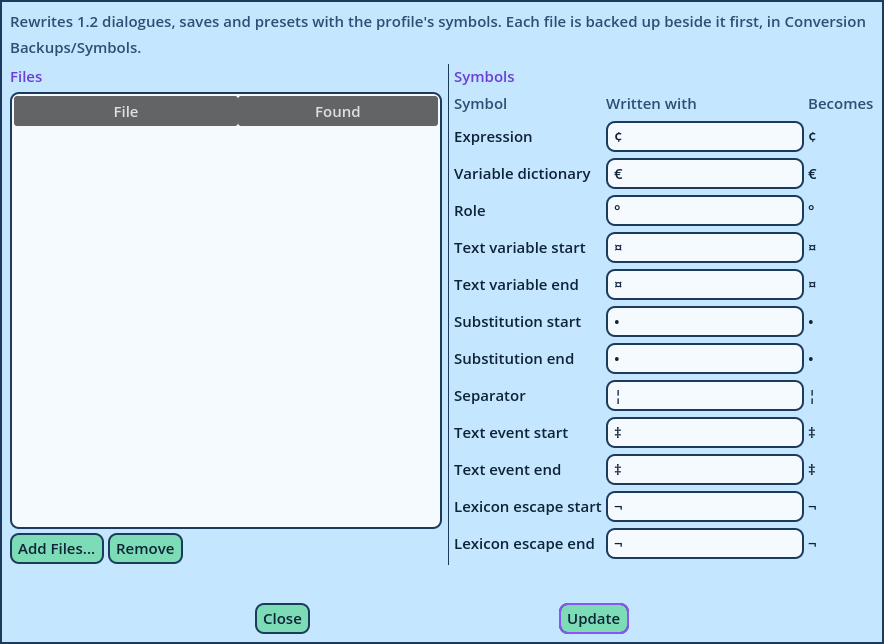
Edit > Symbol Updater... rewrites 1.2 Dialogue files, saves and preset files with the profile's symbols. Use it after changing your project's symbols, to update every file at once rather than each one as it's read.
Files made for Candy Dialogue Engine 1.1 can't be updated: convert them instead (see Converting 1.1 Files).
1. Add the Files
Press Add Files... and pick the files to update. Each is listed with its kind, and whether it stores its symbols. The tooltip of a file's Found column lists which of its symbols change. A file whose symbols already match the profile's is marked (matching), and is skipped.
Remove removes the selected files from the list. Nothing is deleted.
2. Check the Symbols
The table on the right lists every symbol, CandyRef symbols included, in two columns:
| Column | Description |
| Written with | The symbols of the files that don't store theirs. Set them to the symbols those files were written with. They start as Candy Dialogue Engine's default symbols (the profile's, for CandyRef symbols), and are stored in the profile. |
| Becomes | The profile's symbols, from Settings > Project > Symbols. To change them, change that page. |
- Writes a backup of the original, in a Conversion Backups/Symbols folder beside the file, in a folder named after the date and time.
- Replaces the file with its updated version.
A file is only replaced once its backup is written. If you update the preset files of the open profile, its Presets are loaded again.
4. Read the Report
A report opens when the update is done. For each file it says whether it was updated, skipped or not updated and why, how many values changed, where its backup is, then the Lines to check:
| Mark | Meaning |
| Check | Candy Dialogue Engine may read the value differently from before. Check it. |
| Note | The value is read as before, written differently. |
- Expressions: the Expression symbol at the start of a value, and the variable dictionary, Role and CandyRef symbols inside the expression.
- Roles: the Role symbol at the start of a value or an entry name (
°companion), and after the last / of a Cutscene target (Actors/°companion). - Spoken text: text variables, Word Substitutions and their separators, Text Event markers and lexicon escapes, including the symbols escaped by doubling them.
For example, with the Role symbol changed from ° to @:
Hello ¤°companion¤, you have ¤¢globals.gold¤ coins. → Hello ¤@companion¤, you have ¤¢globals.gold¤ coins.
A new symbol that appears as ordinary text is escaped by doubling it, so that it's still displayed as written. For example, with # as the new Text Event symbol, Item #1 becomes Item ##1. The same applies to a value that starts with the new Expression symbol: the symbol is doubled, so the value is still read as text.
Three things are left as written:
- Quoted text inside an expression, such as
¢str("°companion"): it may contain a symbol on purpose, so the report lists it. - Comment commands, which Candy Dialogue Engine never reads.
- The data that only Candy Dialogue Creator uses to draw a Line.
CandyRef Symbols
A CandyRef symbol is identified by what it reads, such as globals.inventory. When only its symbol changes, every expression that uses it is updated. When what it reads changes, it counts as a new symbol: Lines that use the old one retain it, and the report lists them.
What to Check
Candy Dialogue Engine has no escape for some symbols, so the Symbol Updater can't preserve the reading of every value. The report lists these cases as Checks:
- A value starts with the new Role symbol as ordinary text: Candy Dialogue Engine will read it as a Role. The same applies to a text variable or a Word Substitution part that starts with a new variable dictionary, Role or CandyRef symbol: Candy Dialogue Engine will read it as a reference. Rewrite the value.
- A Word Substitution contains the new separator symbol as ordinary text: Candy Dialogue Engine will split the substitution there.
- Quoted text in an expression contains an old symbol: if the text is meant to become a reference, such as a Role name built by the expression, update the symbol by hand.
- An expression uses a CandyRef symbol the profile no longer has: the symbol is left as written. Add it back to CandyRef_Shortcuts.gd, or rewrite the expression.
- An entry would receive the name of another entry once its Role symbol is updated: it retains its old name. Rename one of them.