

Candy Logo

Exporting
Exporting writes the Dialogue to a file that Candy Dialogue Engine reads: a .txt file in your Godot project. Choose File > Export Dialogue... (Ctrl+E).
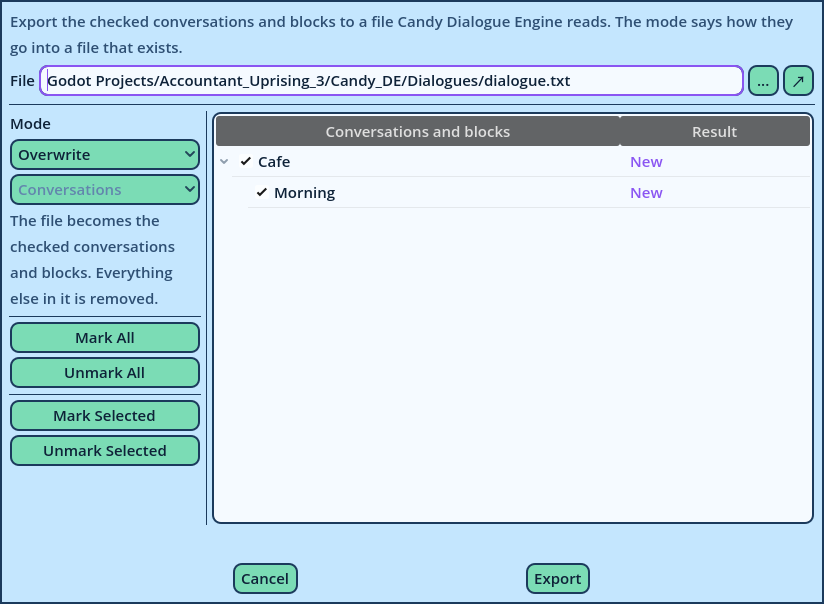
Export Window
The Export Window File Type the file's name, or browse for it. A name alone, such as intro.txt, is written to the Dialogues folder set in Settings > Project > Paths. The button beside it opens that folder in your file manager. The List The list displays the Conversations and Blocks of your Dialogue, each with a check box. Only what is checked is exported. Everything is checked when the window opens.
  • Checking or unchecking a Conversation checks or unchecks all its Blocks.
  • Mark All and Unmark All check or uncheck everything.
  • Mark Selected and Unmark Selected check or uncheck the rows selected in the list. Select several with Ctrl and Shift.
When the file already exists, the Conversations and Blocks that only the file contains are listed too, greyed. Mode The mode decides how the checked items are merged into a file that already exists. It combines two choices.
ModeWhat is written
OverwriteThe file becomes what is checked. Everything else in it is removed.
AddOnly what the file doesn't contain yet. What it contains remains as it is.
UpdateOnly what the file already contains. Nothing is added.
Add & UpdateEverything checked.
ByHow it's written
ConversationsA Conversation is written whole, with only its checked Blocks. The file's Conversation is replaced, and loses its other Blocks.
BlocksOnly the checked Blocks are written, into their Conversation. The file's other Blocks remain.
Overwrite ignores the second choice. A note under the mode describes what the chosen pair does. A Conversation or Block that replaces one in the file retains its place there. New ones are added at the end. Result The Result column displays what the export will do to each Conversation and Block, and is updated with every change you make:
ResultMeaning
NewAdded: the file doesn't contain it yet.
ReplacesReplaces the one in the file.
UpdatedA Conversation some of whose Blocks change.
UnchangedA Conversation none of whose Blocks change.
RemovedThe one in the file is removed.
Skipped: already thereThe file already contains it, and this mode only adds what is missing.
Skipped: not thereThe file doesn't contain it, and this mode only replaces what is there.
Not includedUnchecked.
KeptOnly in the file, left as it is.
Press Export. Candy Dialogue Creator asks for confirmation, with a count of what changes. The file and the mode used last are remembered for the next export, for each profile. File Contents The exported file contains the Lines as Candy Dialogue Engine reads them. Two things are left out:
  • Variations with no text.
  • Data that only Candy Dialogue Creator uses to draw the Line.
Everything else is written, including empty fields and the Meta data of each Line (see Meta Data). Presets are never exported. The file's header also stores the symbols the Lines are written with. When an existing file was written with other symbols than the profile's, an export in any mode but Overwrite asks to update the file first, so that its Lines and yours use the same symbols. When the profile's symbols changed since it opened, every export first asks to update the open Dialogue. See Updating Symbols. Several Files, or One A game can use any number of Dialogue files. Two ways of working: One save per Dialogue file Write one save for each Dialogue, and export each one whole, with Overwrite. One save for several files Write everything in one save, and export some Conversations to each file: uncheck the others, and use Overwrite. The Add and Update modes are for working with others on the same file: they export only your own Conversations or Blocks into it, leaving the rest unchanged. In Your Godot Project How the game loads the file is explained in the Candy Dialogue Engine documentation, under Dialogues > Exporting Dialogues and Running Dialogues. When you export your game from Godot, .txt files are not included by default: add *.txt to the filters of the Resources tab of Godot's Export window.