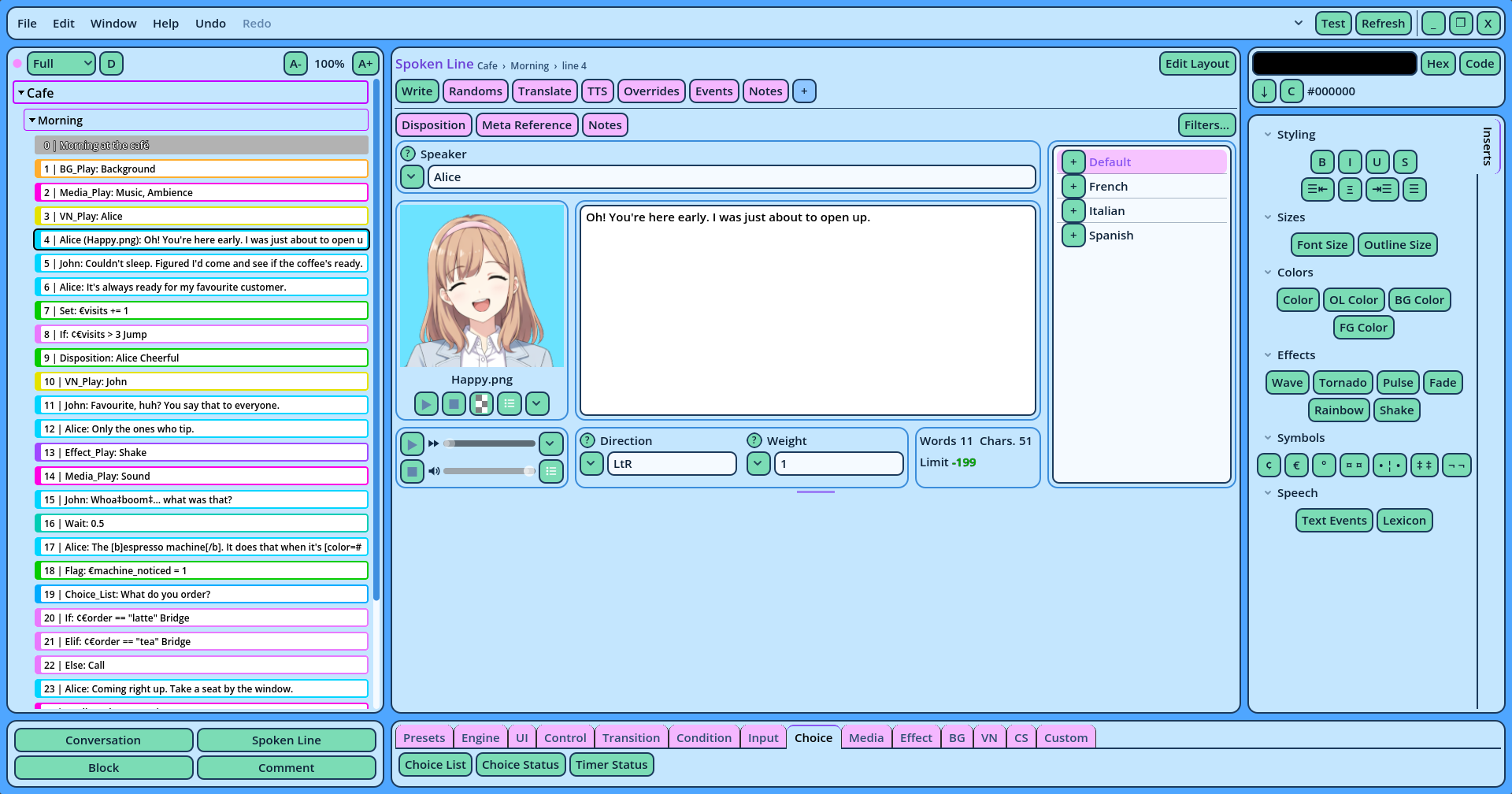
The window of Candy Dialogue Creator consists of Panels. Each Panel sits in an Area, and Areas can be split, resized, rearranged and saved as layouts. This page describes the layout a new profile starts with.
The picture shows the default layout with the Candy Arts Blue theme. Yours can look very different: see Layouts and Theme.
1. Top Bar
Across the top of the window. It contains the File, Edit, Window and Help menus, the Undo and Redo buttons, and on the right the Test and Refresh buttons.
See Top Bar.
2. Dialogue Navigator
On the left. It lists the whole Dialogue: its Conversations, their Blocks, and the Lines in each Block. Click a Line to edit it. Drag rows to move them, and right-click for more actions.
See Dialogue Navigator.
3. Dialogue Editor
In the center. It displays the Line selected in the Navigator, as a form to fill in. Its content depends on the Line's Command: a Spoken Line receives a text editor, a portrait preview and several tabs, while a simple Command receives a short list of fields.
See Dialogue Editor and Editing Lines.
4. Dialogue Buttons
At the bottom. These buttons add Conversations, Blocks, and a Line of each Command to the Dialogue. Under the Dialogue Editor, they are sorted in tabs by kind of Command, with a first tab for your Presets.
A button adds its Line after the Line selected in the Navigator. Hold Ctrl while clicking to add it before.
See Dialogue Buttons.
5. Color Selector and Inserts
On the right. The Inserts panel types text into the field being edited, such as BBCode tags around the selected words, or your project's symbols. The Color Selector above it picks the color the color tags use.
See Inserts and Color Selector.
Common ControlsRight-click for options
Right-clicking inside any Panel opens its menu, which always contains Options: the Panel's settings. Panels carry no settings buttons: their settings are in this menu. Text fields retain their usual right-click menu (cut, copy, paste).
The ? beside a field
Hover the ? left of a field's name to read what the field does and which values it accepts.
Edit LayoutWindow > Edit Layout displays a header on every Panel and an outline around every Area, to modify the layout. Turn it off again to recover the headers' space. See Edit Layout.
SettingsEdit > Settings... opens the settings of the profile. See Settings.
DocumentationHelp > Documentation opens this documentation and Candy Dialogue Engine's in a window of their own. See Documentation Window.
This website uses cookies. By using it, you are providing your consent. If you do not consent, please exit the website.
This website uses cookies to improve your experience while you navigate through the website. Out of these, the cookies that are categorized as necessary are stored on your browser as they are essential for the working of basic functionalities of the website. We also use third-party cookies that help us analyze and understand how you use this website. These cookies will be stored in your browser only with your consent. You also have the option to opt-out of these cookies. But opting out of some of these cookies may affect your browsing experience.
Necessary cookies are absolutely essential for the website to function properly. These cookies ensure basic functionalities and security features of the website, anonymously.
Cookie
Duration
Description
cookielawinfo-checkbox-analytics
11 months
This cookie is set by GDPR Cookie Consent plugin. The cookie is used to store the user consent for the cookies in the category "Analytics".
cookielawinfo-checkbox-functional
11 months
The cookie is set by GDPR cookie consent to record the user consent for the cookies in the category "Functional".
cookielawinfo-checkbox-necessary
11 months
This cookie is set by GDPR Cookie Consent plugin. The cookies is used to store the user consent for the cookies in the category "Necessary".
cookielawinfo-checkbox-others
11 months
This cookie is set by GDPR Cookie Consent plugin. The cookie is used to store the user consent for the cookies in the category "Other.
cookielawinfo-checkbox-performance
11 months
This cookie is set by GDPR Cookie Consent plugin. The cookie is used to store the user consent for the cookies in the category "Performance".
viewed_cookie_policy
11 months
The cookie is set by the GDPR Cookie Consent plugin and is used to store whether or not user has consented to the use of cookies. It does not store any personal data.
Functional cookies help to perform certain functionalities like sharing the content of the website on social media platforms, collect feedbacks, and other third-party features.
Performance cookies are used to understand and analyze the key performance indexes of the website which helps in delivering a better user experience for the visitors.
Analytical cookies are used to understand how visitors interact with the website. These cookies help provide information on metrics the number of visitors, bounce rate, traffic source, etc.
Advertisement cookies are used to provide visitors with relevant ads and marketing campaigns. These cookies track visitors across websites and collect information to provide customized ads.