

Symbols
Settings > Project > Symbols
Candy Dialogue Engine identifies some kinds of values by a symbol, such as ¢ in front of an expression. Each game project can choose its own symbols, in its Candy_Properties.gd and CandyRef_Shortcuts.gd. This page records the symbols your project uses.
What each symbol means, and the rules for choosing them, are in the Candy Dialogue Engine documentation, under Getting Started > Next Steps > Symbols.
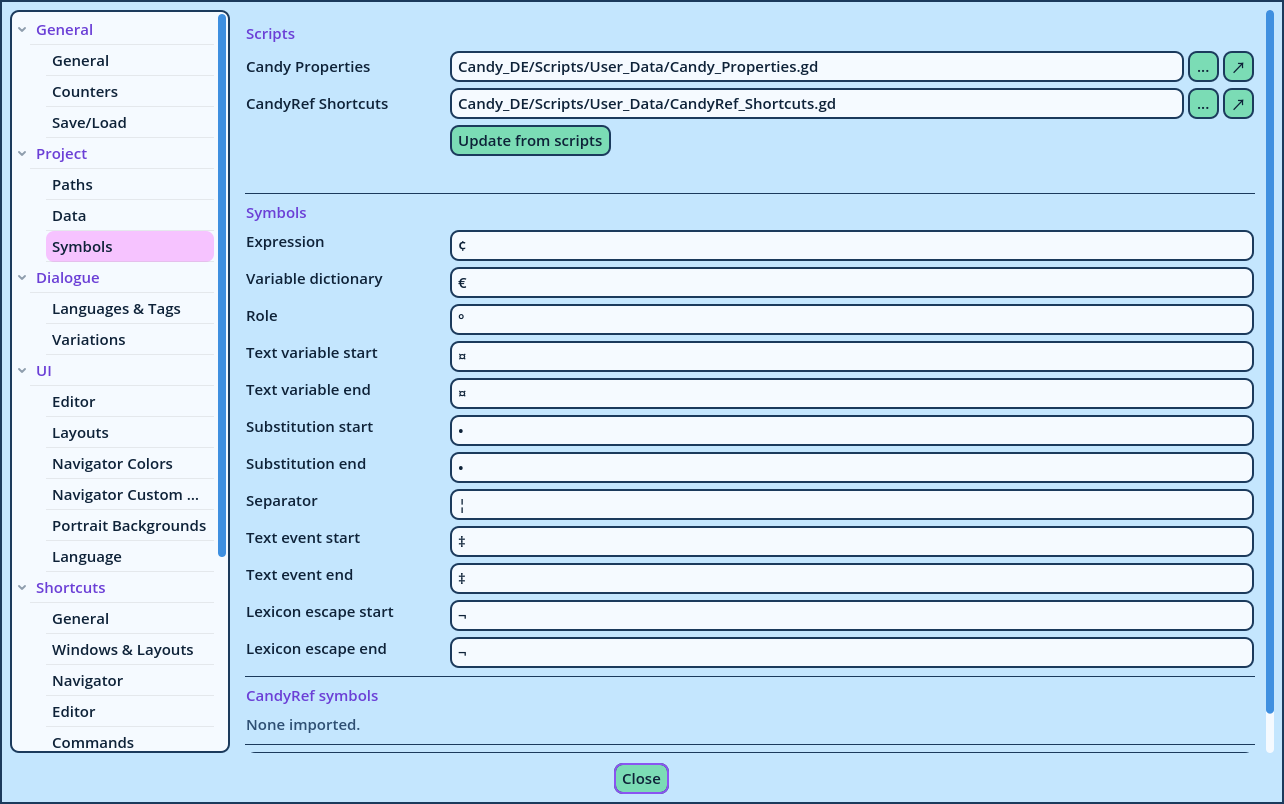
| Setting | Description |
| Candy Properties | Your project's Candy_Properties.gd. It's the same setting as on the Paths page. |
| CandyRef Shortcuts | Your project's CandyRef_Shortcuts.gd. |
| Update from scripts | Reads the symbols below from both scripts. The note under the button states what was read from each one. |
| Symbol | Default in Candy Dialogue Engine | Designates |
| Expression | ¢ | A value evaluated when the Line runs. |
| Variable dictionary | € | Inside an expression, a value of the variables dictionary. |
| Role | ° | A Role. |
| Text variable start, Text variable end | ¤ | In a Spoken Line's text, a variable to display. |
| Substitution start, Substitution end | • | In a Spoken Line's text, a Word Substitution. |
| Separator | ¦ | Separates the values of a Word Substitution. |
| Text event start, Text event end | ‡ | In a Spoken Line's text, a Text Event's marker: Wait‡boom‡... |
| Lexicon escape start, Lexicon escape end | ¬ | In a Spoken Line's text, text the Lexicon never formats: ¬Alice¬ |
SHORTCUT_SYMBOLS and LOOKUP_SYMBOLS), each named after what it reads: Shortcut to globals.inventory, Lookup in globals.equipped, then globals.items.
Update from scripts replaces the list with the script's. A symbol can be typed by hand; to add or remove one, modify the script, then update. If the script can't be read, the list is left as it is.
Candy Dialogue Creator retains these symbols to update the files written with other ones (see Updating Symbols). A CandyRef symbol is identified by what it reads: change what a symbol reads in the script, and Candy Dialogue Creator treats it as a new symbol.
Where Candy Dialogue Creator Uses Them
- In the help of every field, which displays the values a field accepts with your symbols.
- In dropdowns: Roles are written with your Role symbol.
- In checks: a value that starts with your Expression symbol is treated as an expression, and isn't checked.
- In the Symbols inserts of the Inserts panel, which type them.
- In rules that show or hide fields.
- In the Text Event markers the speech drop-downs of the Inserts panel type, and which the Counters exclude, along with the lexicon escape symbols.
- In the Dialogue Converter, which escapes the 1.2 symbols it encounters in a 1.1 Line's text, so that they are still displayed as written.
- In the files Candy Dialogue Creator writes, which store the symbols they were written with (see Updating Symbols).