Lists and Entries
Some Commands have parts that repeat: a Choice List has categories, each with choices; a Media Play has one or more media players. Each of these parts is an entry, and every entry has the same fields.
In the Form
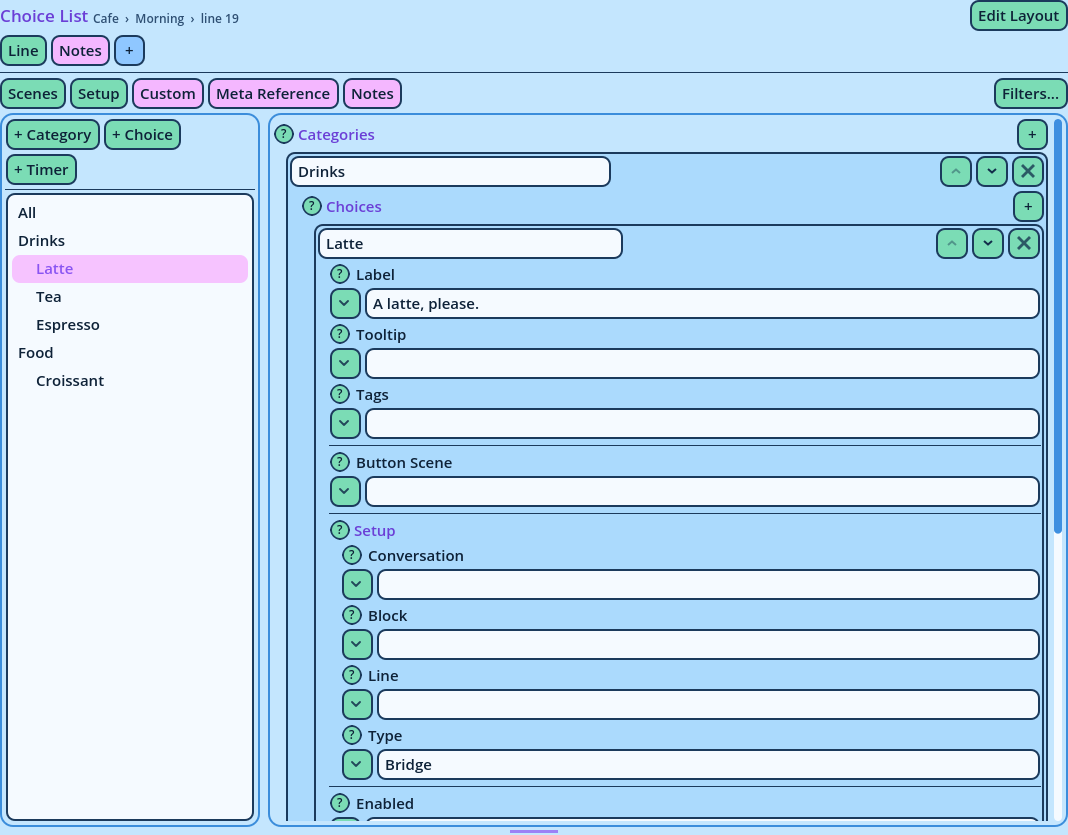
A list is displayed as a title with a + button, followed by its entries. Each entry has a header, with its fields indented under it.
| Control | What it does |
| +, beside the list's title | Adds an entry at the end. |
| The entry's name | Type to rename it. Names must be unique in their list. |
| The up and down arrows | Move the entry up or down. |
| × | Removes the entry and everything in it, after asking. |
All
Category_1
    Choice_1
    Choice_2
Category_2
    Choice_1
Timer_1
- Click an entry: the form displays only that entry and what's inside it.
- Click All to display everything.
- The + buttons add an entry, such as + Category and + Choice. A nested one adds to the entry that is selected: select a category first to add a choice to it. The new entry is selected.
See Field Tree.
Media Players and Other Typed Entries
In some lists, an entry's name determines what the entry is. In a Media_Play, each entry is a media player of your game, and its name is the player's name: pick it from the dropdown beside the name.
A player's type (audio, image or video) is displayed beside its name, and the form only displays the fields that type uses: an audio player has a volume but no size. When Candy Dialogue Creator can't tell the type, as for a player it can't locate in the project, every field is displayed.
A media player's type is read from the folder named after it in your project's Audio, Videos or Images folder, so types are only known once the project is set up (see Project Setup).
Numbered Entries
Meta Notes and Custom Data are lists of single values, named Note_1, Note_2... and Custom_1, Custom_2...
- + adds the next number.
- × removes one, after asking. Those after it are numbered again, so there is never a gap.
- They can't be renamed or reordered.
See Meta Data.
Form Contents
The fields inside entries can be reordered, separated by lines, or left out of a form, like any field: right-click the form and choose Fields.... What you set applies to every entry of the list. See Fields widget.