Advanced Speech Editor
The Advanced Speech Editor is a Speech Editor that displays the text formatted, the way the game's dialogue box will: bold, italic, colors and sizes are applied, and the BBCode tags are hidden.
It behaves as the Speech Editor in every other way: it follows a Variation Selector, writes the text when you leave it, and displays messages about the text. This page covers what it adds.
Writing Formatted Text
Type as in a word processor. The caret skips the hidden tags.
- To format some words, select them and click an insert, such as B or Color, in the Inserts panel. Tags can also be typed by hand.
- Text typed at the edge of formatted text receives the formatting on its left.
- Deleting text retains its tags, unless you delete both a tag and its closing tag.
Bold, italic, underline, strikethrough, code, links, text and background colors, font sizes, alignment and indents are rendered. A list is rendered as an indent, without bullets or numbers. Tables and images are displayed as written.
Editing Tags
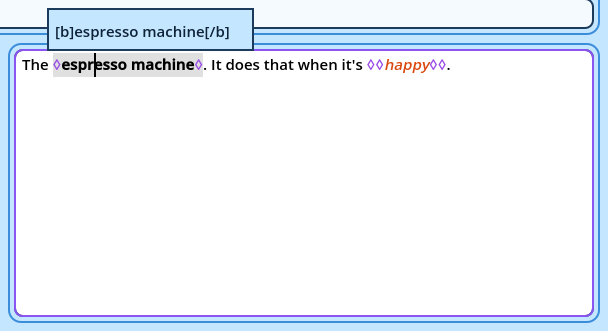
Click formatted text, or move the caret into it: a popup above the text displays that piece as it is written, with its tags.
[color=#ff8800]very[/color]
To change the tags:
- Click the popup, or press Shift+Enter, to edit it. Enter inserts a line break there.
- Press Shift+Enter again to return to the text.
- Press Escape to return to the text and undo what you changed in the popup.
The key is the Edit Tags shortcut, set in Settings > Shortcuts > Editor.
Tag Markers
A hidden tag can be displayed as a marker: one small character where the tag is. The caret moves around a marker like around any character, so the caret can be placed exactly before or after a tag. Deleting a marker deletes its tag and the matching opening or closing tag: the formatting is removed, the text remains.
| Mode | Markers displayed |
| Off | None. |
| On | One for every tag. |
| Smart | Only where they are needed to place the caret: a tag and its closing tag with nothing between them, and the tags at the start or end of a line. |
| Option | Description |
| Tag markers | Default follows the settings. Off, On and Smart are this editor's own. |
| Marker color | The color of the markers. With Default ticked, the color of the settings. The color is made lighter or darker where it wouldn't stand out from the background. |
- The Advanced Speech Editor suits writing: you read the text as players will.
- The Speech Editor suits checking tags, or text with a lot of them, since everything is visible.
Both write the same text. Each can have a tab of its own.