

Candy Logo

Spoken Lines
A Spoken Line is a Line an Actor speaks. It's the most frequent Line, and the one with the most to edit: who speaks, with which portrait and voice, what they say in every language and Variation, and how the Line is displayed. Its form is split into tabs. This page describes the tabs of the default layout. Like everything else, they can be rearranged (see Line Layouts). Write The tab for writing the Line.
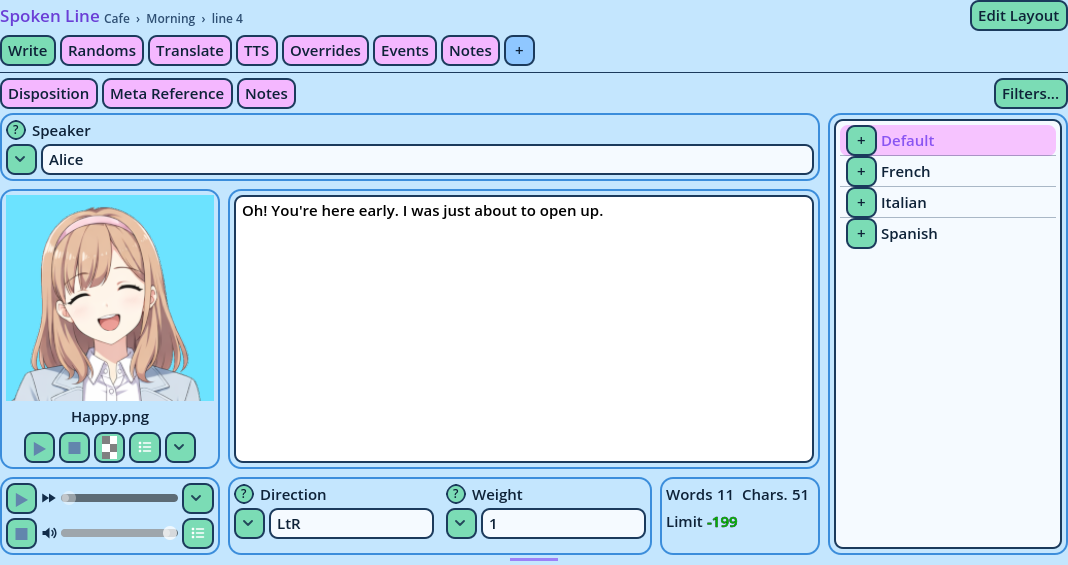
Spoken Line Write Tab
The Line's Data
FieldDescription
DispositionA condition on the speaker's dispositions: the Line runs only when it passes.
SpeakerThe Actor who speaks, or a Role.
Disposition comes first, since the condition under which a Line runs is usually decided before the Line is written. For a Line without a disposition, click in Speaker, type the speaker's name, then press Tab to move to the text. The Portrait and the Voice Under the speaker, the Portrait Preview displays the Line's portrait, with the name of its file, and plays it when it's animated. Under the portrait, the Voice Preview plays the voice file of the Variation being written. See Portrait Preview and Voice Preview. The fields of the portrait and of the voice aren't part of the form: each preview has a dropdown arrow that picks its file (Portrait or Voice), and a button that opens a pop-up with all its fields, such as Play Portrait or Enable Voice. The portrait and voice dropdowns list the files of the Actor named in Speaker, so fill in the speaker first. The Text The large box is the text the Actor says. In the default layout it's an Advanced Speech Editor: it displays the text as the game will, with its BBCode formatting applied and the tags hidden. See Advanced Speech Editor. A text that starts with your Expression symbol (¢) is an expression as a whole: Candy Dialogue Engine displays its result, and Candy Dialogue Creator doesn't check it as text. To display the symbol itself at the start of a text, escape it by doubling it. Beside it, the Variation Selector lists the versions of the text. The text box displays the one that is picked there: Default to begin with. See Variations. Under the text:
  • Direction and Weight are properties of the Variation being written.
  • The Counters display the number of words and characters of the text, and how far it is from the limit set in Settings > General > Counters.
The Text Events and Lexicon drop-downs of the Inserts panel type your project's Text Event markers and Lexicon keywords into the text (see Inserts). Filters The toggles above the form hide what isn't needed at the moment: the Disposition, the Meta Reference, the notes. See Filters. Randoms The tab for writing random Variations: alternate texts the game picks from, so that a Line that plays often doesn't always read the same. Each random Variation has a text box of its own, one under the other. See Random and TTS Variations. Translate The tab for translating: each Variation is displayed in the language you translate from, beside a text box for the language you translate to. See Translating. TTS The tab for writing what text-to-speech reads, when it must differ from the displayed text. See Random and TTS Variations. Overrides The tab for the Line's settings: everything a Spoken Line can decide for itself instead of leaving it to its Actor or to the Engine. They are sorted in categories that fold. Click a category's name to fold or unfold it.
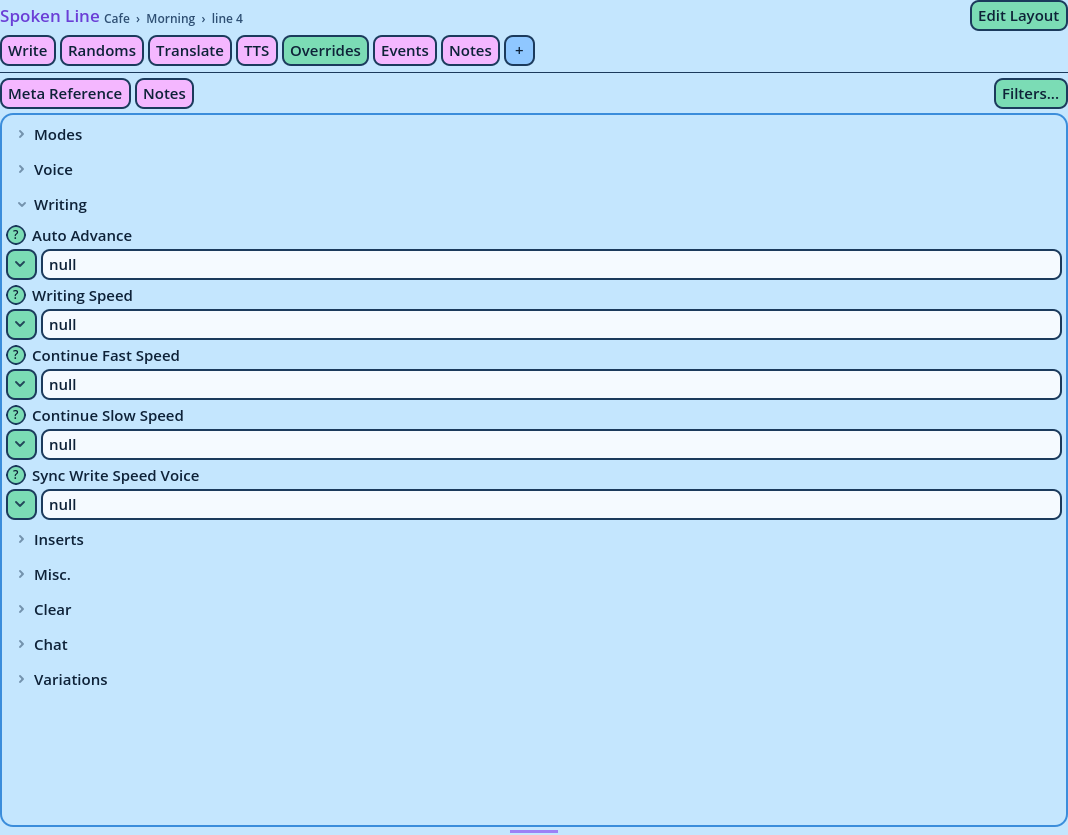
Spoken Line Overrides Tab
CategorySettings
ModesHow the Line is displayed: its Dialogue Mode, and which speakers receive a portrait.
VoiceIts voice and text-to-speech.
WritingHow its text is written: the writing speed and auto advance.
InsertsText added around the Line: BBCode around the text and the speaker's name, and the strings displayed at the end of the Line.
Misc.Other settings, such as the dialogue history and the Lexicon.
ClearWhat is cleared when the Dialogue moves on.
ChatHow the Line is displayed in a Chat.
VariationsThe Variation tags that pass or fail on this Line.
All of these are overrides: left at No override (null), they change nothing. See "No Override" in Fields. Events The tab for the Line's own Text Events: Commands that run while the Line is written, when the writing reaches their markers in the text, such as Wait‡boom‡... what was that?. Events shared by the whole project are stored in its Text Events dictionary instead, available to every Line; a Line's own Events take precedence. See Text Event Editor.
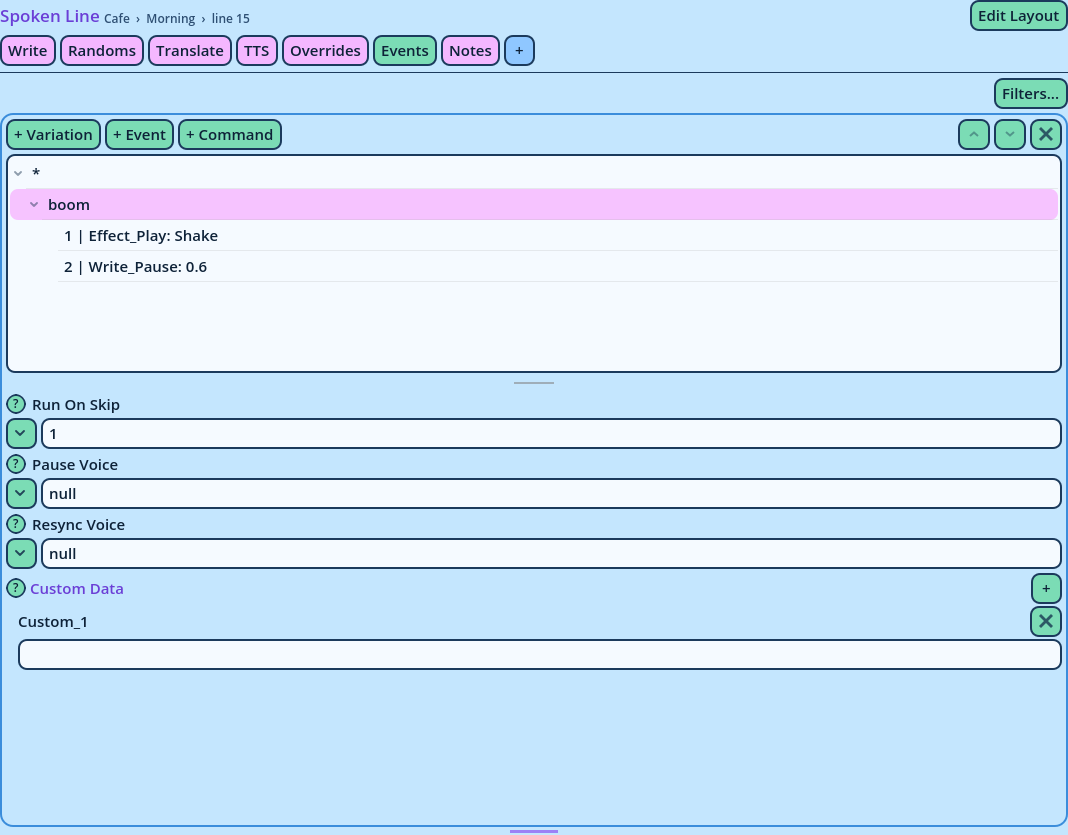
Spoken Line Events Tab
Notes The tab for the Line's Meta Notes: notes for the people who work on the Dialogue. Every Command has this tab. See Meta Data. In the Navigator A Spoken Line is displayed in the Dialogue Navigator as its speaker followed by its text: the text of its first Variation. In Full mode it also displays its Disposition, portrait and voice.