

Candy Logo

Theme
Settings > Theme The appearance of Candy Dialogue Creator: its colors, font, text sizes, shapes and spacing. The Theme category has a page to choose a theme, then pages to adjust it.
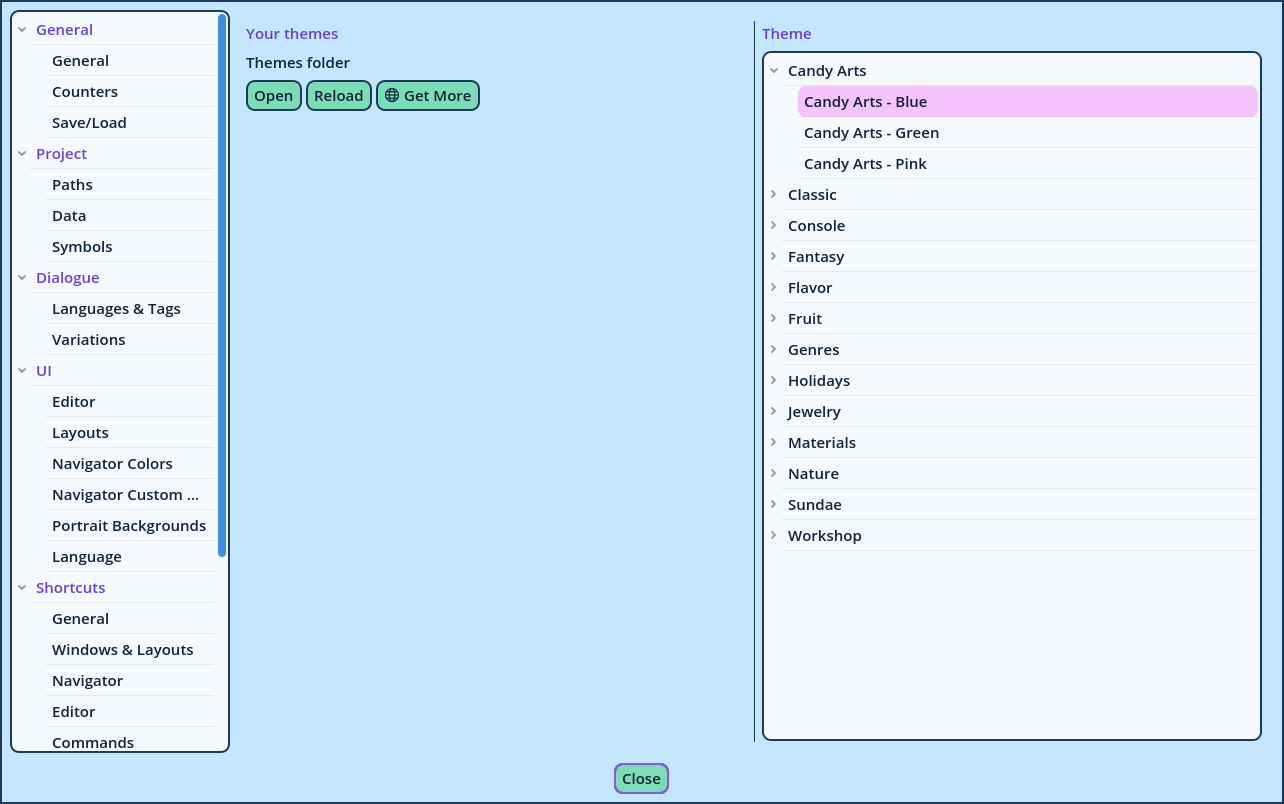
Settings Theme
Choosing a Theme On the Theme page, pick a theme in the Theme dropdown. It is applied at once. More than a hundred official themes are available for Candy Dialogue Creator, sorted in categories: Candy Arts, Classic, Console, Flavor, Fruit, Genres, Jewelry, Materials, Nature, Sundae and Workshop. A new profile starts with Candy Arts Blue. The landing screen always retains the same appearance, whatever theme a profile uses. Adjusting the Theme The pages after Theme contain the settings a theme consists of:
PageSettings
ColorsThe colors of the background, panels, boxes and text fields, of buttons and borders, of frames, of tabs, and the accent color.
TextThe colors of text and of its outline, including titles, errors and warnings, the font and the text sizes.
Shapes & SpacingRounded corners, border and frame widths, padding, margins and spacing.
Editor & NavigatorThe Navigator's Conversation and Block rows, its selection outline and dots, the lists of widgets, and the borders of Edit Layout mode.
Each setting displays its current value, with a check box in front of it:
  • Change a value: its box is ticked. The setting is now an override, your own value instead of the theme's.
  • Untick the box to restore the theme's value.
Every change is applied at once. Overrides Belong to a Theme Overrides are retained for the theme they were made under. Choosing another theme displays that theme as it is, with the overrides made for it, if any. Returning to the first theme restores its overrides. The same applies to the colors set on other pages: the Counters' colors, the tag marker color and the Navigator's colors. Each theme has its own. Font and Text Size To change the font of the interface, pick a font file in Font, on the Text page. Default retains the theme's own font. The list contains the font files of the fonts folder, which the Open Folder button beside the list opens. To add a font, place its file in that folder (.ttf, .otf, .woff or .woff2): the list displays it the next time it's opened. Fonts in a mod's Fonts folder are listed too (see Mods). Like every setting of these pages, the font is an override of the current theme: another theme displays its own font until a font is picked for it too. To enlarge or shrink everything, change Text size on the Text page. Buttons and fields follow the text. The Dialogue Navigator has its own text zoom, in its toolbar. Your Own Themes Under Your themes:
ButtonWhat it does
OpenOpens the folder your own themes are stored in.
ReloadScans the folder again, after a file was added or changed.
Get MoreOpens Candy Arts' themes page in your browser, to download more themes.
A theme is a file. To add one someone shared with you, place it in the themes folder and press Reload: it's then listed in the dropdown, marked as yours.
  • A folder inside the themes folder is a category: its name is the category's.
  • A theme with the same file name as a built-in one replaces it.
To create a theme, see Themes. What a Theme Doesn't Change
  • The colors of the Commands in the Dialogue Navigator, set in Navigator Colors. A theme provides their defaults.
  • The colors of Speech Editors and Speech Viewers that have colors of their own, since they stand for your game's dialogue box.
  • The colors assigned to your insert buttons and Comments.