

Voice Preview
The Voice Preview plays the voice file of a Spoken Line, for the Variation picked in the Variation Selector that has the same reference.
A Line has one Voice field for all its Variations, and each Variation has its own file of that name. The preview searches for the file where the game will, following your project's voice settings.
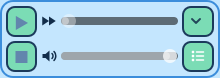
| Control | What it does |
| Play | Plays the voice, or pauses it. |
| Stop | Stops, back to the start. |
| The position slider | Indicates the playback position. Drag it to move through the file. |
| The volume slider | The volume of the preview. It's shared by every Voice Preview, and doesn't change the Line. |
| The arrow | Opens the Voice field's dropdown, to pick the voice file. As in the field, hovering a file plays it. |
| Voice fields | Opens a pop-up with the Line's voice fields: Voice, Enable Voice, Await Voice Playback and Sync Write Speed Voice. |
| Message | What to do |
| This line has no Voice. | Fill in the Line's Voice field. |
| Set the Speaker to an Actor, and the Voice files folder. | The file is searched for in the speaker's folder: the Speaker must be an Actor, since a Role's Actor is only known in the game, and the Voice files folder must be set in Settings > Project > Paths. |
| No file to preview. | The Voice has no file extension. The game locates such a file by itself, but the preview doesn't guess it: pick the file from the dropdown. |
| Voice file not found. | The file isn't where the game would search for it. The message states the path. If the file was added a moment ago, press Refresh in the top bar. |
| TTS Variations have no voice file. | A TTS Variation is picked. |
| Option | Description |
| Reference | The Variation Selector this widget follows. |
| Layout | How the controls are arranged: One row, One row, sliders stacked, Three rows, or Buttons stacked, sliders stacked. |
| Sync portrait | See above. |
| File name | Displays the name of the voice file above or below the controls, or hides it. Its tooltip displays the whole path. When the path can't be determined (no Actor as speaker, or no Voice files folder), the Voice field's value is displayed instead. |
| Voice drop-down button, Voice fields button | Display or hide the arrow and the fields button. |
| Minimum Size, Maximum Size | The minimum and maximum size of the widget's area. |