

Fields
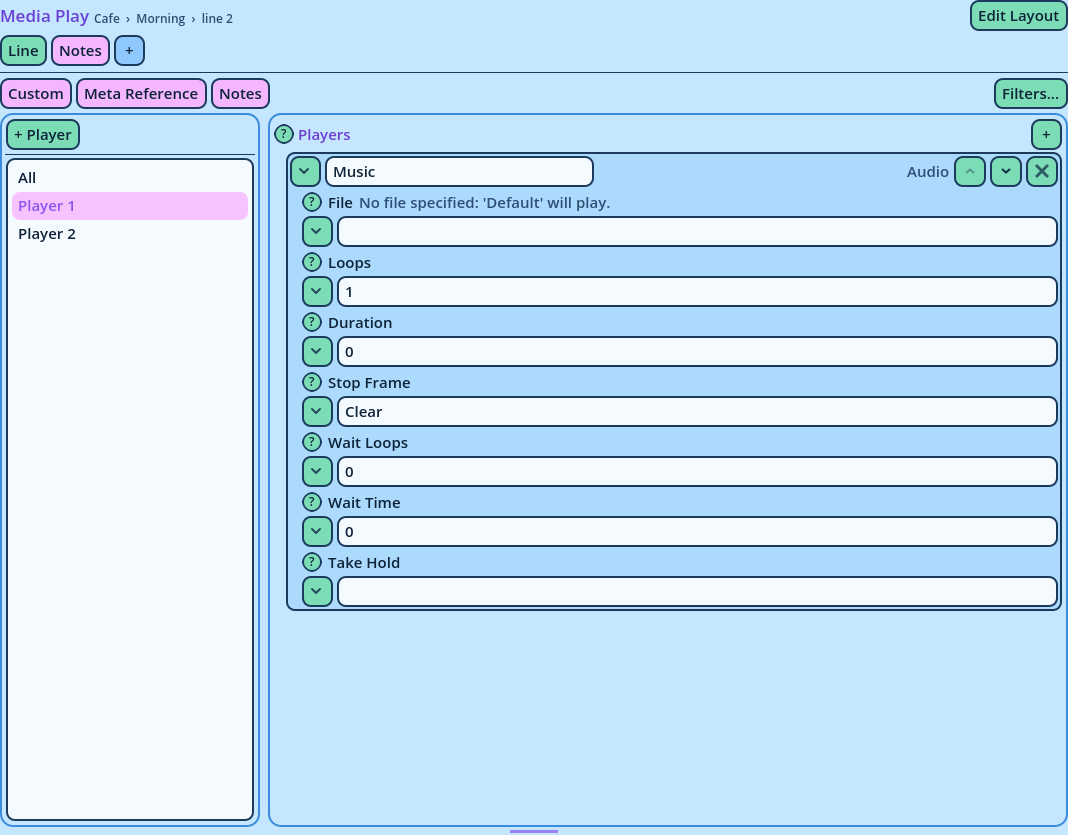
A field edits one value of a Line. From left to right and top to bottom, a field consists of:
- A ? button, which displays the field's help.
- The field's name.
- Messages about its value, when there are any (see Field Messages).
- An arrow button that opens its dropdown, when it has one.
- The text of the value.
Speaker (Reference)
The actor who speaks this line.

Values:
• Actor reference
• °Role reference
• ¢Expression- The first line is the field's name, followed by its key in the Dialogue file when the two differ. The key is the name the Candy Dialogue Engine documentation uses.
- Then what the field does.
- Then the kinds of value it accepts.
5, 0.5) and on/off values as 1 and 0.
Most fields also accept an expression: a value that starts with your project's expression symbol (¢ by default) and is evaluated when the game runs the Line, such as ¢globals.gold. The field's help says whether it does. Expressions are explained in the Candy Dialogue Engine documentation, under Features > CandyRef Expressions.
Dropdowns
The arrow button left of a field opens a list of values to pick from. Picking one writes it in the field.
A dropdown is a help, never a restriction: a value that isn't listed can still be typed.
- An item displays a label, followed by the value it writes in parentheses when the two differ: Loop forever (-1) writes
-1. - Lists are read from your project wherever possible: Actors and Roles, Flags, Dispositions, portraits, voice files, media files, scenes, and the Conversations, Blocks and Line Marks of the Dialogue.
- Long lists are divided into submenus that open when hovered.
- In fields that accept a list of values, picking an item adds it to the list instead of replacing it.
- Picking an item can also fill the field beside it: picking a portrait animation also fills Sprite Frames File.
- The last two items, CLEAR and RESET, are actions rather than values (see below).
null, and its dropdown starts with No override (null). Left that way, the Actor or the Engine decides.
Don't empty such a field to mean "no override": an empty value is a value of its own for Candy Dialogue Engine, such as an empty text or no effect. RESET (null), at the bottom of the dropdown, restores null.
Clear and Reset
A dropdown ends with two actions, under a line that separates them from the values. They are written in capitals, to distinguish them from values:
- CLEAR empties the field.
- RESET restores the field's default value, which it displays in parentheses: RESET (LtR), or RESET (empty) when the default is an empty value.
| Kind | Description |
| Text | One line of text. The most common. |
| Multi-line text | Several lines, for comments, notes and long expressions. Some grow with their text. |
| Color | A text field with a color button on its left. Pick a color with the button, or type one. |
| Group | A titled set of fields. |
| List or map | A part that repeats, with a + to add entries. See Lists and Entries. |