

Dialogue Navigator
The Dialogue Navigator lists the Dialogue: each Conversation, the Blocks inside it, and the Lines inside each Block. It is where the Lines to edit are selected, and where the Dialogue is organized.
Each kind of row has its own colors, and each Command its own, so the shape of a Dialogue can be read at a glance. The colors are set in Settings > UI > Navigator Colors (see Navigator Colors).
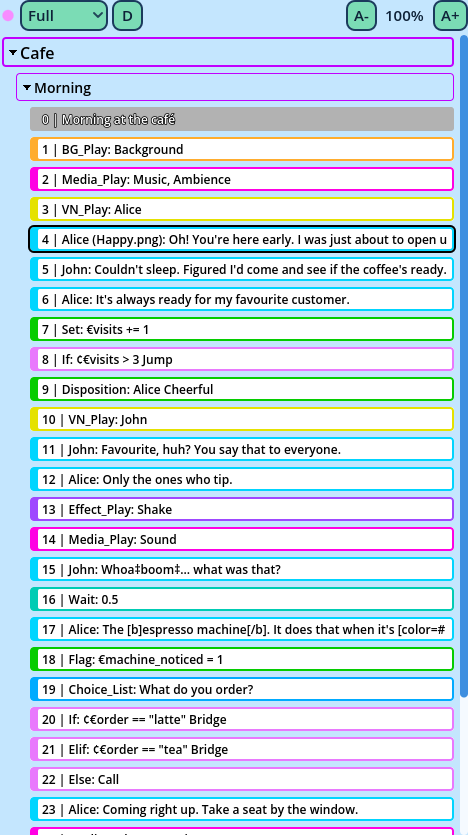
| Control | What it does |
| The dot | Full when this Navigator is the one used last: the Dialogue Buttons panel and pasting act on its selection. It only matters with several Navigators (see References). |
| The mode dropdown | What each Line displays: Full, Short, Meta or Custom. See below. |
| The content button | What the Navigator lists. Click to cycle: D the Dialogue, P the Presets, A all of them. |
| A- and A+ | Shrink or enlarge the text, in steps of 10%. |
| Mode | Each Line displays |
| Full | Its Command and a summary of its data. |
| Short | Only what the Line does: the media a Command plays, the destination of a Jump, a condition's Description. |
| Meta | Its Command and its Meta Reference (see Meta Data). |
| Custom | One of the three above for each Command, as chosen in Settings > UI > Navigator Custom Mode. |
- A Spoken_Line displays its speaker and its text. In Full mode, it also displays its Disposition, portrait and voice.
- A Comment displays its comment, in the color assigned to it.
‡boom‡), so it reads as the player will read it. Full mode displays them.
In Short mode, the Condition commands display their Description field when it isn't empty: plain words for other writers, which the game doesn't read. A condition then reads "If the player has the key" instead of its expression.
Selecting
- Click a row to select it. Clicking a Line also opens it in the Dialogue Editor.
- Ctrl+click adds a row to the selection, or removes it from the selection.
- Shift+click selects every row from the last one clicked to this one.
- Click the arrow in front of a Conversation or a Block to fold it.
- Lines can be dropped anywhere in a Block, in any Conversation.
- Blocks can be dropped in any Conversation.
- Conversations are reordered among themselves.
| Item | Shortcut | What it does |
| Test Here | Shift+F6 | Tests the Dialogue from this row. See Testing. |
| Rename | F2 | Renames the selected Conversation or Block. |
| Cut | Ctrl+X | Copies the selection, then deletes it. |
| Copy | Ctrl+C | Copies the selection. |
| Paste | Ctrl+V | Pastes what was copied. See below. |
| Duplicate | Ctrl+D | Inserts a copy of the selection. |
| Delete | Delete | Deletes the selection. |
| Options | The Navigator's reference and the minimum and maximum size of its Area. |
- Lines are pasted under each selected Line, or at the top of a selected Block.
- Blocks are pasted under each selected Block, or at the top of a selected Conversation.
- Conversations are pasted under each selected Conversation.
| Keys | What they do |
| Up, Down | Select the previous or next row. |
| Shift+Up, Shift+Down | Extend the selection up or down. |
| Ctrl+Up, Ctrl+Down | Select the previous or next Block. |
| Alt+Up, Alt+Down | Move the selected Lines up or down. |
| Ctrl+A | Select every Line of the selected Blocks. |
USER PRESETS and PROFILE PRESETS, always at the top. Each of their Blocks is a Preset, edited like any Block. See Presets.
Several Navigators
A layout can contain any number of Navigators. Navigators with the same reference share their selection. To select a second Line and edit it in a Dialogue Editor of its own, assign another reference to one of them, in its Options. See References.