

Candy Logo

Line Layouts
A line layout is the form the Dialogue Editor displays for one Command: its tabs, and in each tab the areas and their widgets. Every Command has its own, and each can be modified. Line layouts are arranged like the window: areas are split in two, and each undivided area displays one widget. The operations are those of Edit Layout for windows.
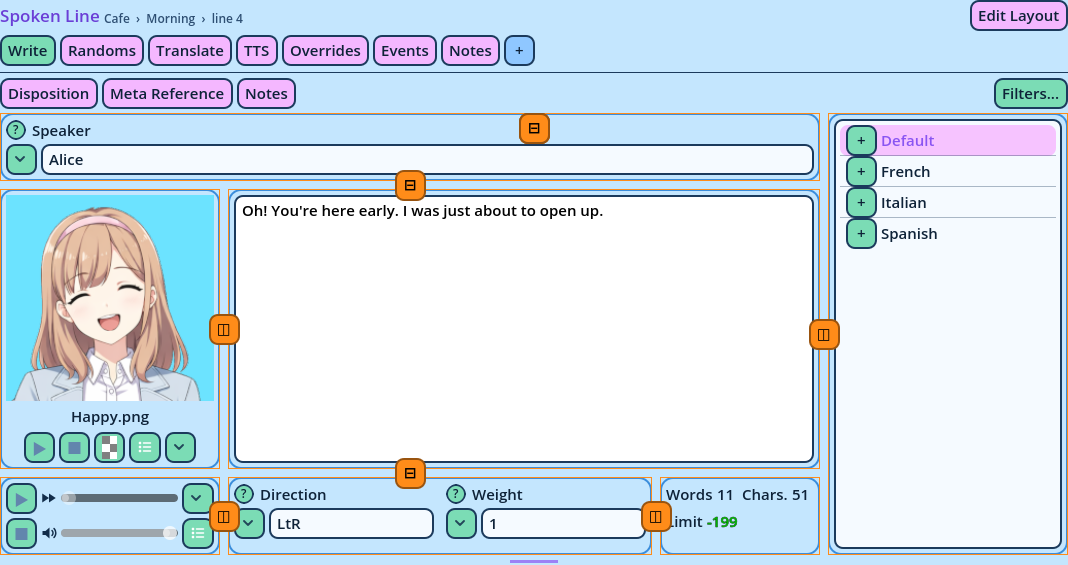
Line Layout Edit Mode
Editing a Line Layout 1. Select a Line of the Command whose form to modify. 2. Press Edit Layout at the top right of the Dialogue Editor. This is the Editor's own Edit Layout mode, separate from the window's. 3. Arrange the tabs and areas, as described below. 4. Press Edit Layout again to return to editing the Line. The changes apply to every Line of that Command in that Dialogue Editor, and are stored as they are made. Filters apply in Edit Layout mode too, so that the tab looks the same: turn a filter off to edit what it hides. Tabs Tabs are managed from the tab row, with Edit Layout on or off:
  • The + after the last tab adds a tab, after asking for its name. A new tab starts with one area displaying every field.
  • Dragging a tab moves it among the others.
  • Right-clicking a tab opens its menu.
ItemWhat it does
Rename Tab...Renames the tab. Tab names are stored in the layout as typed, so the built-in layout's tabs are displayed in English in every language until they're renamed (see Language).
Minimum Height...Sets the minimum height of the tab's content, in pixels. 0 for none.
Remove TabRemoves the tab, with its areas and filters. The last tab can't be removed.
Add Tab...Adds a tab, like the +.
Reset LayoutDiscards every change made to this Command's form, and restores its plain layout.
OptionsThe Dialogue Editor panel's Options.
Areas and Widgets In Edit Layout mode, every area is outlined. The outline is drawn over the widget, so no widget moves when the mode is turned on. While the mouse is over an area, a + button is displayed over its widget's top-left corner. It opens the area's menu:
ItemWhat it does
WidgetThe widget the area displays.
Split Left, Split Right, Split Up, Split DownSplits the area in two, with a new area on that side. A new area starts as a Fields widget displaying every field not placed elsewhere.
OptionsThe widget's settings, and the area's minimum and maximum size.
Fields...For a Fields widget: the fields it displays.
ScrollWhether the widget scrolls inside its area.
Save Widget Layout..., Load Widget LayoutSaves the widget's settings under a name, or loads saved ones.
Save Area Layout..., Load Area LayoutSaves the area with its widget, or replaces it with a saved area.
Close AreaRemoves the area. The neighboring area expands into its place, and the other areas retain their size. A tab's only area can't be closed.
Dragging an area's + moves the area onto another area of the same tab, as Areas move in a window, with the same copy and swap keys (see "Moving Areas" in Edit Layout). An area that is split has a button over the middle of its divider, with the same menu as a split Area of the window: add an area on a side or between the two, swap or turn the two sides, set them to equal sizes, remove one, and save or load the whole as an Area layout. Drag the dividers to resize the areas, with Ctrl to move in steps and Alt to align dividers. The widgets are described under Widgets. Sizes and Scrolling The areas of a tab share the size of the Dialogue Editor, down to the bottom dragger (below). Three settings preserve the usability of a form when the Editor is small:
  • An area's Minimum Size, at the bottom of its widget's Options: the minimum width and height of the area.
  • A tab's Minimum Height..., in its right-click menu: the minimum height of all its areas together.
  • A widget's Scroll: off, the area is as tall as its widget's content.
Once the Editor is smaller than these, the areas stop shrinking and the whole tab scrolls. An area's Maximum Size, under its Minimum Size, limits how far it grows: the area beside it receives the rest. When nothing can receive it, the widget stays at its maximum size in the top-left corner of its area. 0 means no maximum, and the minimum size wins over the maximum. Hidden Widgets When a filter hides a widget, the other widgets retain their size:
  • Beside it, the neighboring widget expands into its space.
  • Under it, the widgets move up, with their height, and the space is left empty at the bottom of the tab.
Closing an area is different: the area next to it, above, below or beside it, expands into its place, and the other areas retain their size. A common arrangement is a tall form with Scroll off on its widgets, so that the tab scrolls as one page instead of each area scrolling on its own. The Bottom Dragger Under a tab's widgets, a divider with a grip in its middle sets how far down the widgets reach. The space below it stays empty. It works with Edit Layout on or off, like the other dividers: with Ctrl to move in steps and Alt to align it.
  • Dragging it resizes only the widgets that touch it: every widget above keeps its height. Side by side, every widget touching it resizes; stacked, only the lowest.
  • It stops where those widgets reach their minimum height.
  • When a widget that touches it is hidden, it moves up until it touches another widget, and moves back down when the widget is displayed again.
  • Double-clicking it sends it back to the bottom of the tab: the widgets then reach the bottom, and follow the size of the Dialogue Editor.
Each tab retains the position of its dragger, which is saved with the layout. A new tab's widgets reach the bottom. Saved Areas An area, with everything in it, can be saved and loaded in another tab or for another Command: Save Area Layout... and Load Area Layout. Load Area Layout only lists the saved areas that fit the Command: an area with a Speech Editor is only offered for a Spoken Line, and an area whose Fields widget lists specific fields is only offered for the Commands that have them. Saved areas of forms are stored separately from the Areas of the window: a window's Area can't be loaded into a form, nor the other way. See Saved Layouts. Per-Editor Layouts Line layouts belong to the Dialogue Editor panel they were made in. A second Dialogue Editor starts with the plain layouts, and can be arranged differently. To copy the line layouts of one Dialogue Editor to another, save the first with Save Panel Layout... and load it in the second with Load Panel Layout: a Dialogue Editor's panel layout contains all its line layouts. Form Sources For each Command, the Dialogue Editor uses, in this order: 1. The layout made for it in that Editor. The built-in window layout provides one for every Command. 2. The layout the Command ships with, if it has one. 3. One tab with one Fields widget displaying every field. Reset Layout, in the tab bar, restores 2 or 3 for the Command displayed. To restore the built-in forms of every Command, use Window > Reset Layout, which resets the whole window.