

Candy Logo

Undo and Redo
Every edit of the Dialogue can be undone and redone: adding, moving, renaming and deleting Conversations, Blocks and Lines, and every change to a Line's data. Edits to Presets are covered too. The Undo and Redo Buttons
  • Undo, in the top bar after the menus, reverts the last edit (Ctrl+Z).
  • Redo applies it again (Ctrl+Y or Ctrl+Shift+Z).
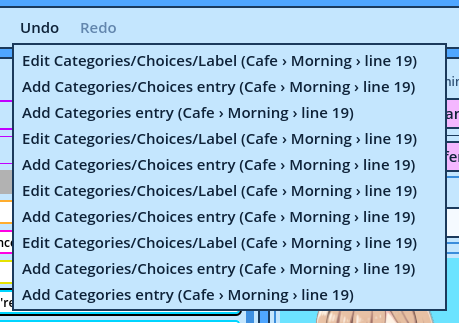
The tooltip of either button names the edit it acts on. After an undo or a redo, the Dialogue Navigator and the Dialogue Editor return to the Line that changed. Several Steps at Once Right-click Undo or Redo to list every step, the next one first. Picking a step undoes or redoes it and every step above it.
Undo List
In a Text Field While you are typing in a field, Ctrl+Z undoes your typing, as in any text editor. The text is written to the Dialogue when you leave the field, and becomes one undo step then. The Undo and Redo buttons first write the text being typed, as a step of its own. So clicking Undo right after typing undoes that typing. What Isn't Undone
  • Settings.
  • Layouts: Areas, tabs, widgets and filters.
  • Inserts.
  • Selecting Lines: a selection alone is never a step.
The history is cleared when:
  • You start a new Dialogue.
  • You load a save, or a quick save.
  • You import a Dialogue.
  • The symbols of the open Dialogue are updated (see Updating Symbols).
  • You close the profile.
Limits By default the 25 last steps are retained. Settings > UI > Editor sets the Maximum steps and the Maximum memory (MB) of the history. 0 means no limit. See Editor.